Location
The quick search icon 🔍 is located in the top-right corner of the application interface.

How It Works
Typing a Keyword
Begin typing in the search field
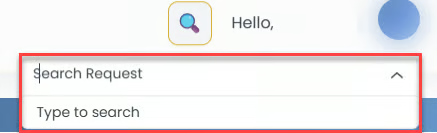
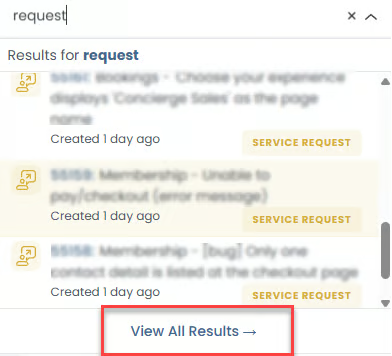
As soon as there is a word match, results are dynamically displayed in a dropdown list below the input field.
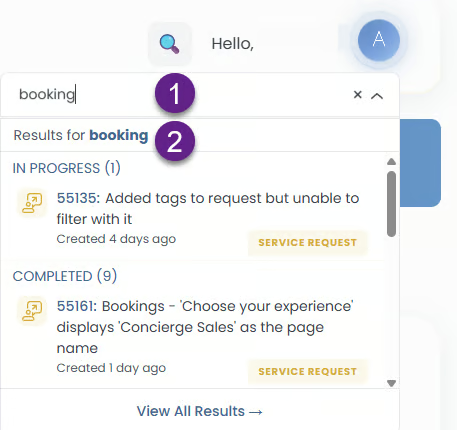
Search Results Display
Up to 10 matching results are shown in the quick search list.
Results are grouped by ticket status:
In Progress
Completed
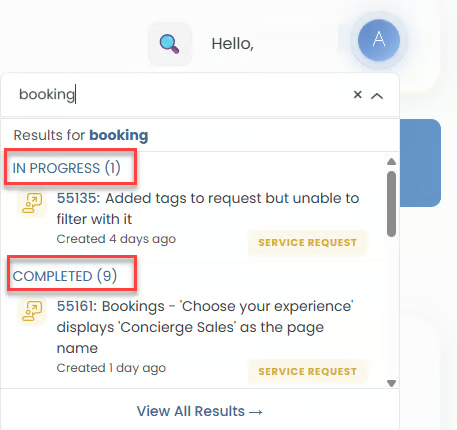
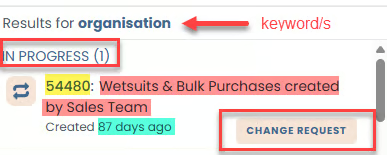
Each result entry includes:
Ticket number (e.g., 54202)
Ticket title (e.g., New user is created without duplication check for membership payer)
Ticket type (e.g., Service Request)
Created date (e.g., 10 hours ago)
View All Results
A "View All Results →" link appears at the bottom.
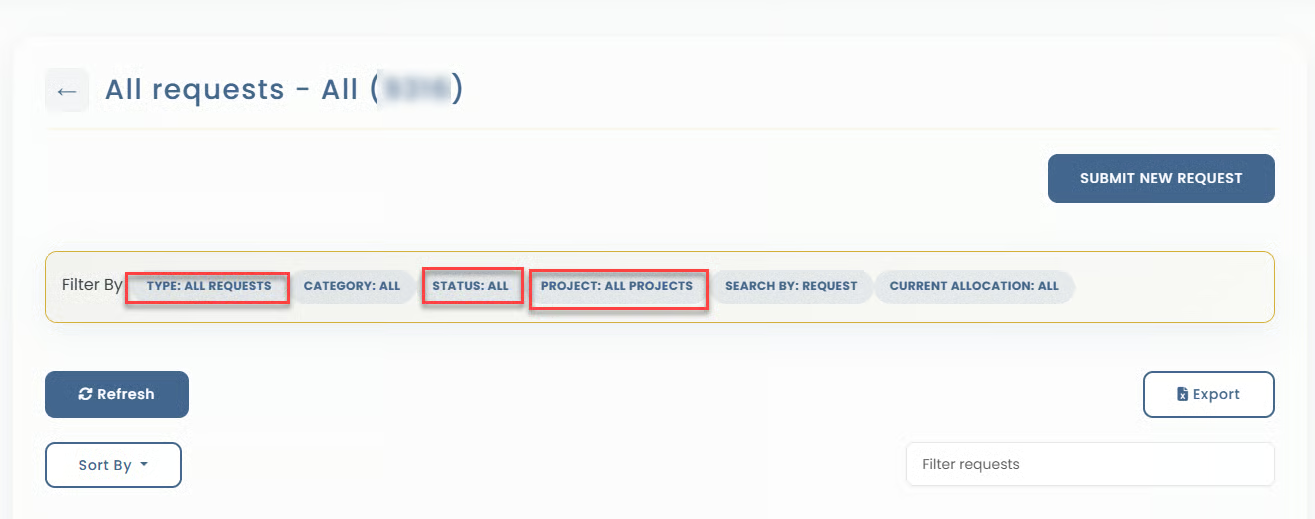
Clicking this link opens the Advanced Search page, automatically passing the following parameters:
Projects: All projects that the ASD user is part of
Ticket Status: All
Ticket Type: All
Category: All
Current Allocation: All
Search by: Keyword entered by user
To Clear Search
Click the X icon inside the search box to clear the current input
To Close Search
4Clicking outside of the search field closes the dropdown results list.