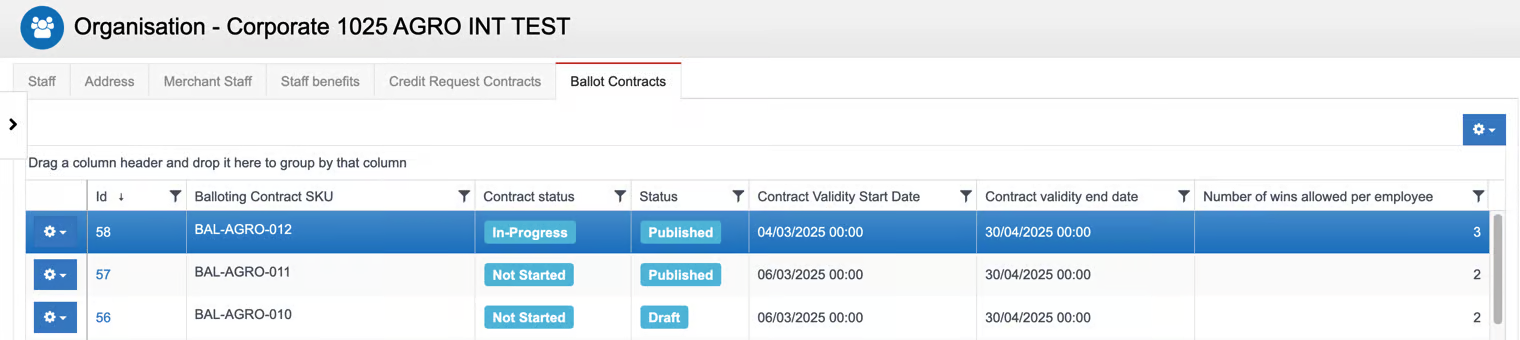
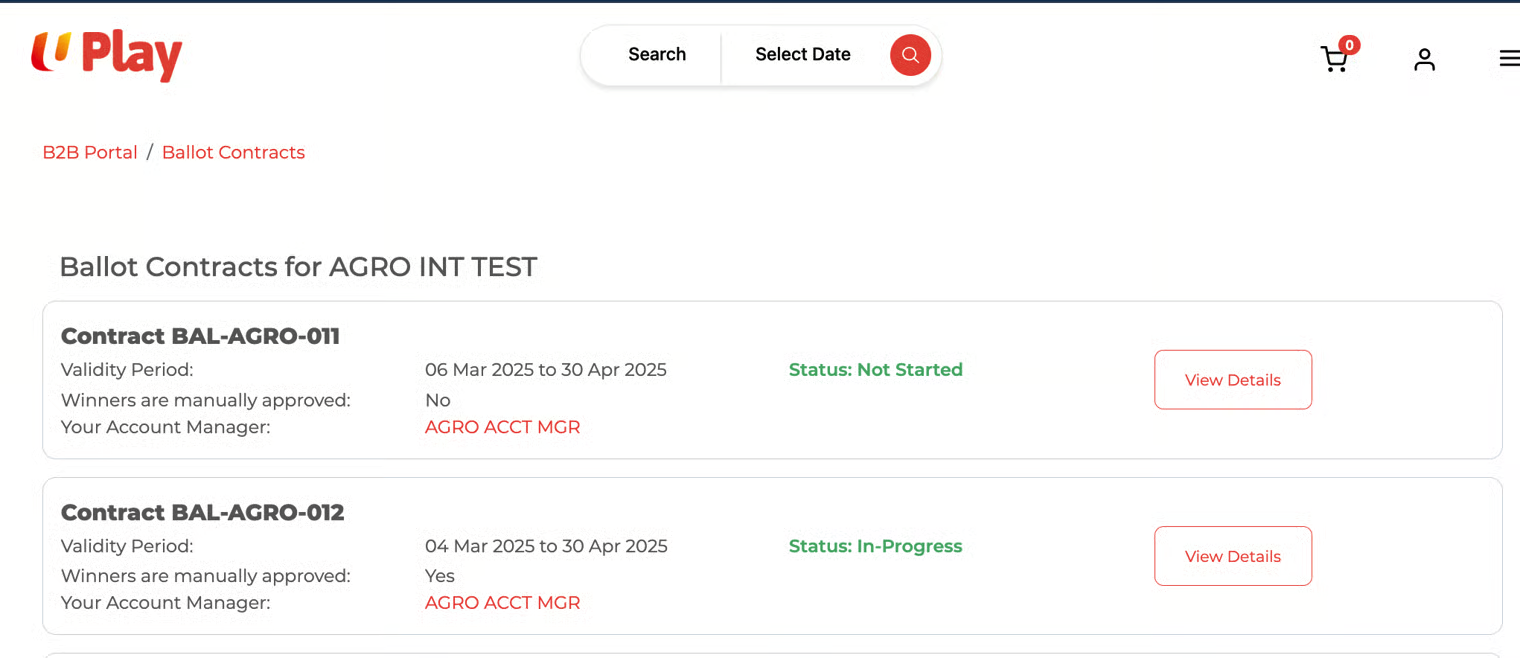
Create Contract, Workflow Notifications and save as Draft
Admin
Role: Admin
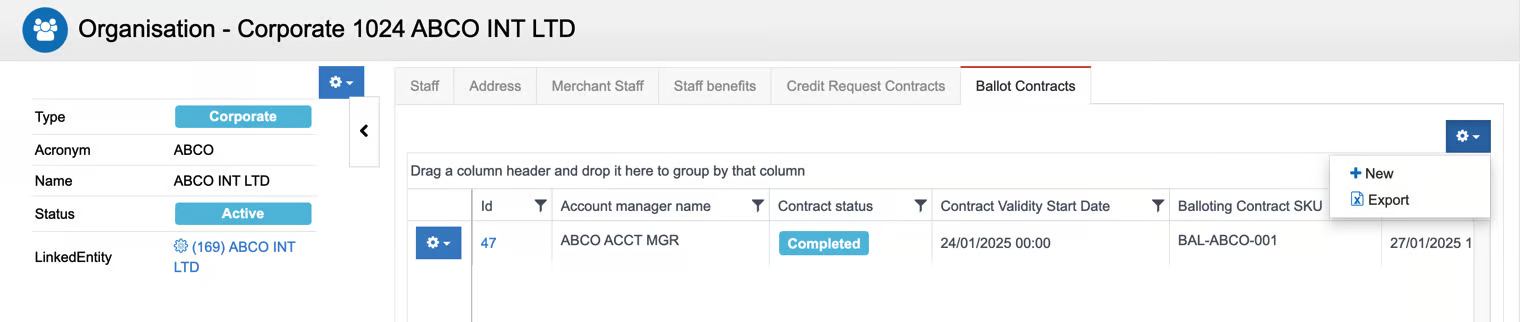
Navigate to the Organisation detail page and select the Ballot Contracts tab.
Click on the tool icon. To initiate a new contract, select the +New button.
Enter the ballot contract details in the Balloting contract Edit form.
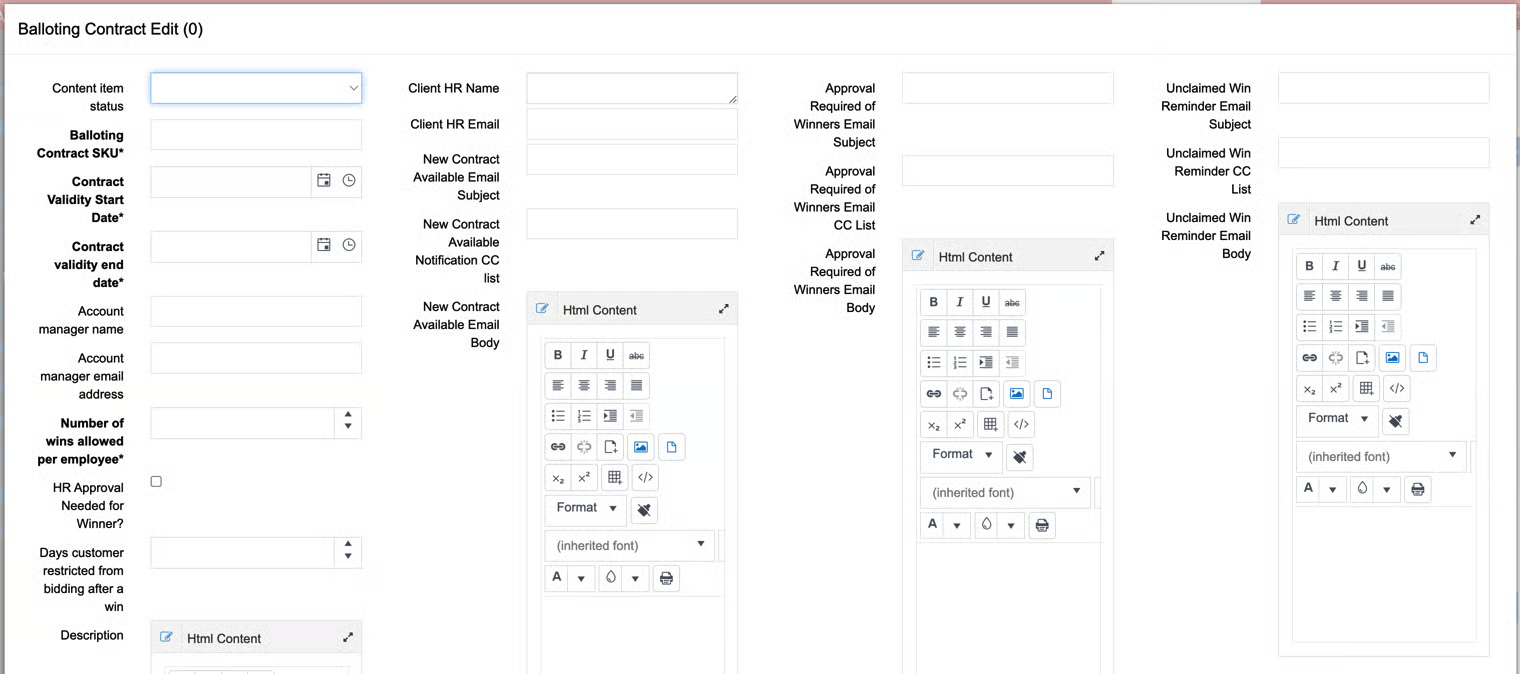
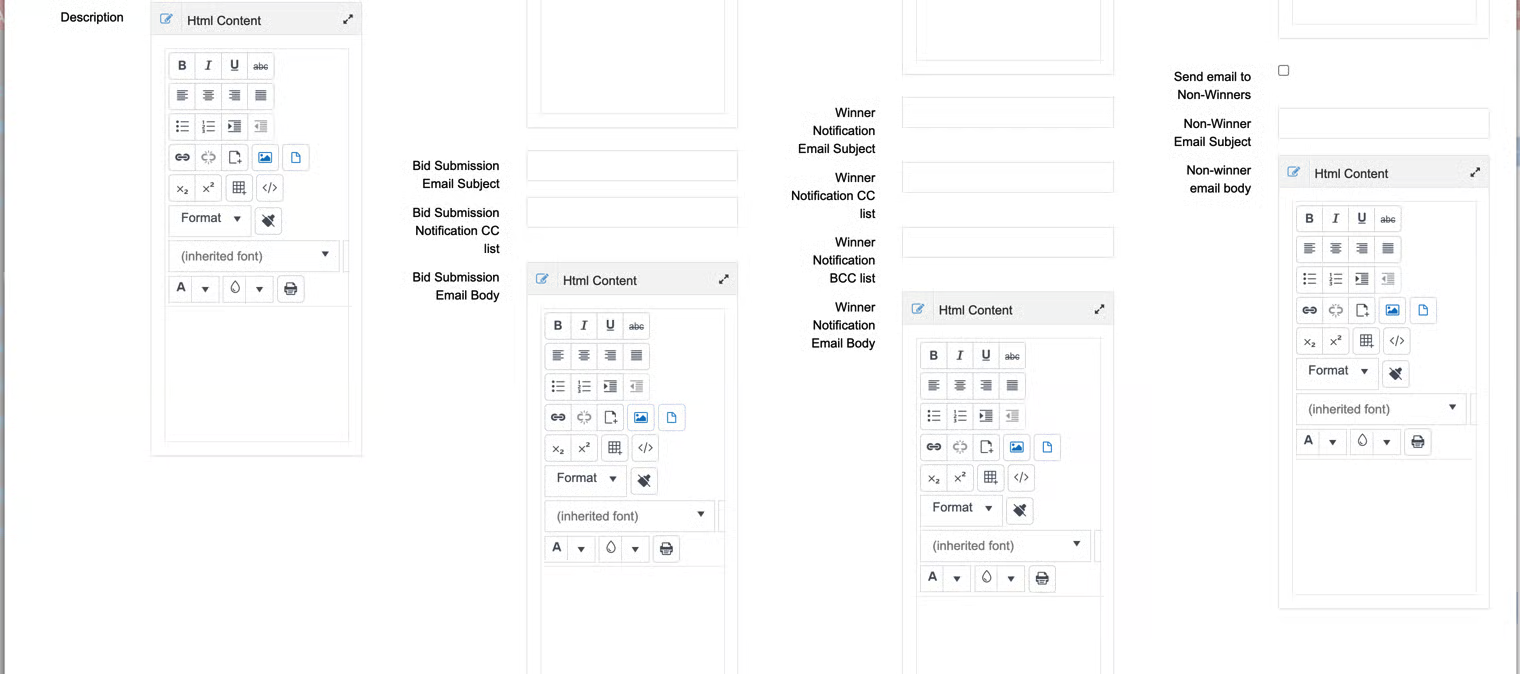
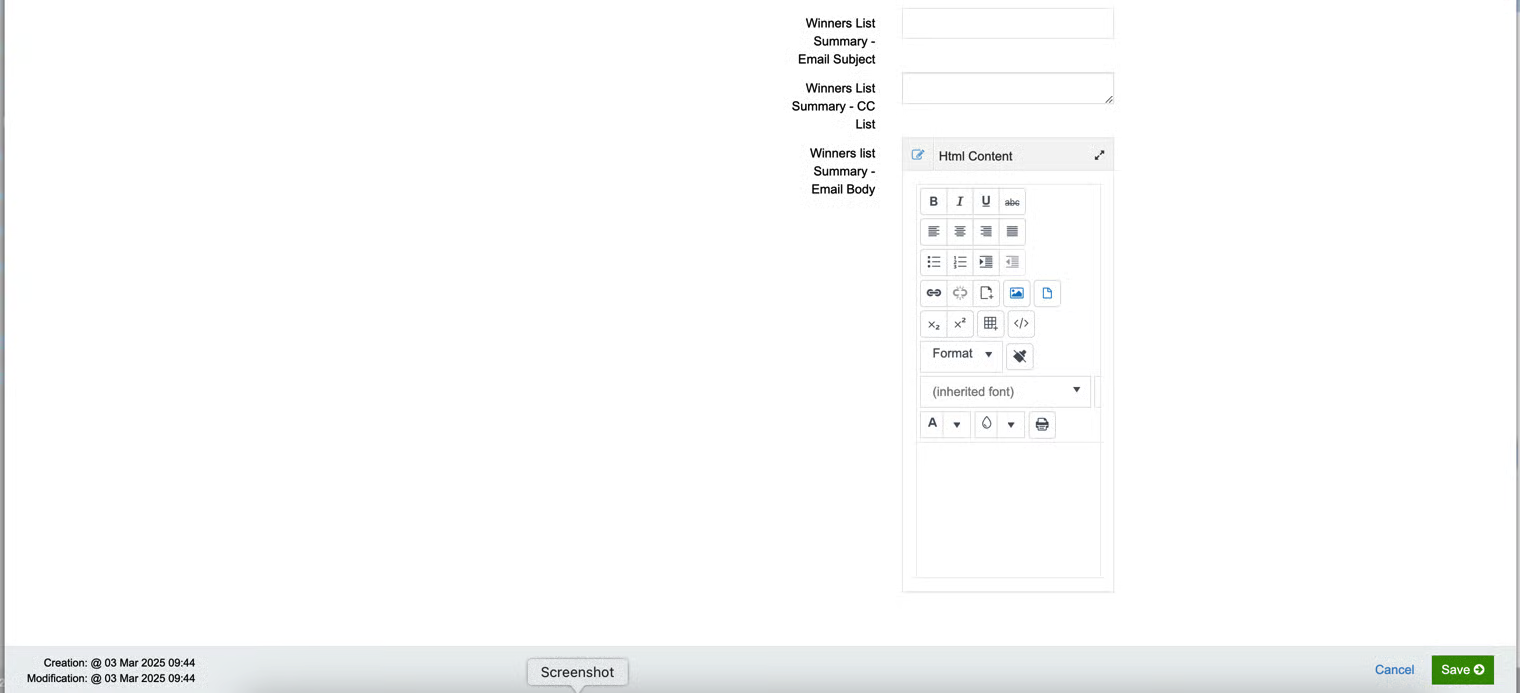
Balloting Contract Edit form fields and workflow notification setup are as below. Click the link to open the guide.
(Note: Users have the option to create their own email subject and email body for all types of notifications) :
b. New Contract Available Notification - notifies Client HR
c. Bid Submission Email Notification - notifies the employee who submitted the bid
d. Approval Required of Winners Email Notification - notifies the Client HR to approve winners
e. Winner Notification Email - notifies the Winner
g. Unclaimed Win Reminder Email - notifies the Winner who has not yet claimed the prize
h. Non-winner Email - notifies the ballot participants who did not win the bid
In the Content Item Status field, choose 'Draft' to save the contract as a draft.
Content item status = Draft, Contract Status = Not Started
Content item status = Published, Contract Status = Not Started >> if the contract start date is a future date
Content item status = Published, Contract Status = In Progress >> if the contract has started, i.e., the start date is the current date
Note:
Ideally, save the contract as a Draft, then update Reward Service Types before changing the content item status to 'Published.'
'Published' means the ballot contract will be available and visible in the Client B2B portal