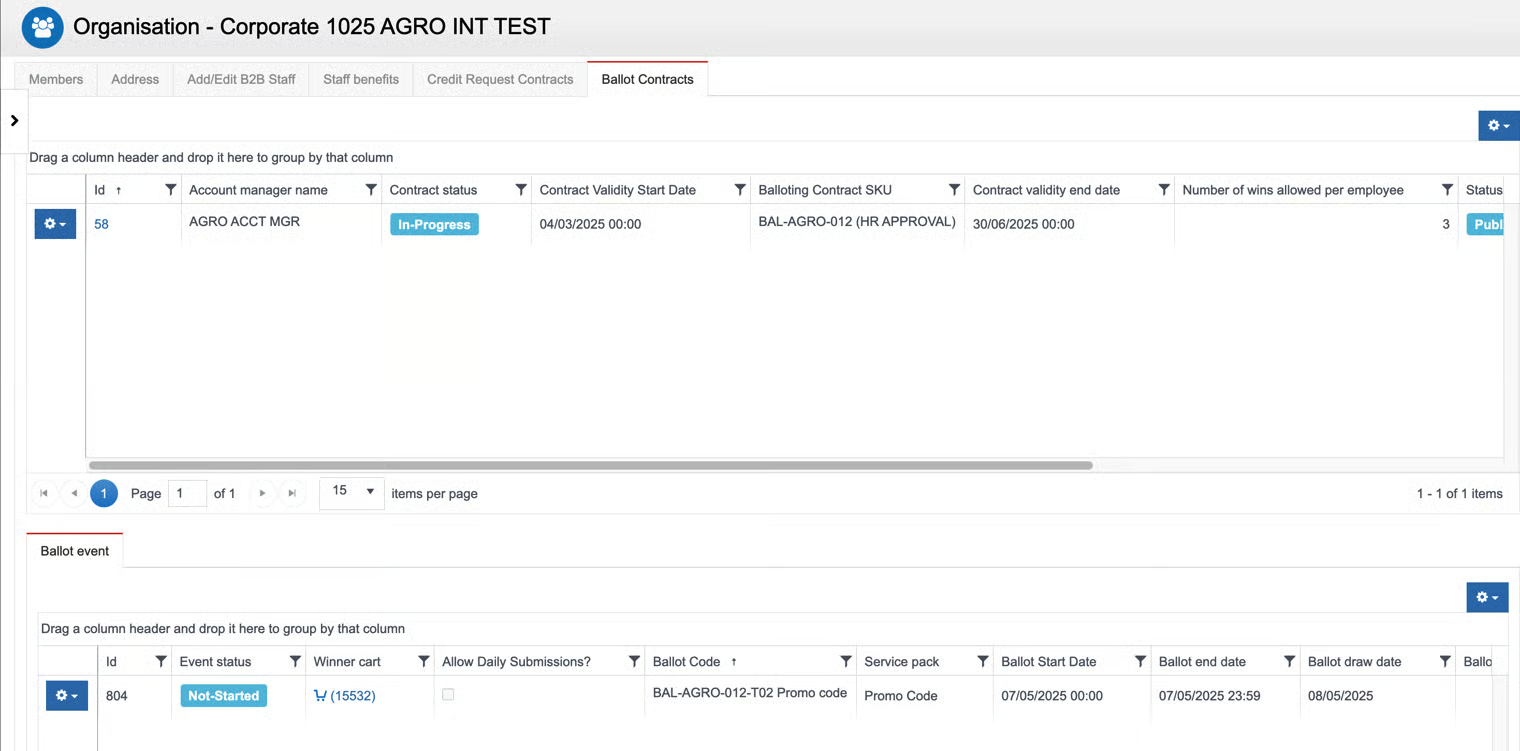
Promo code
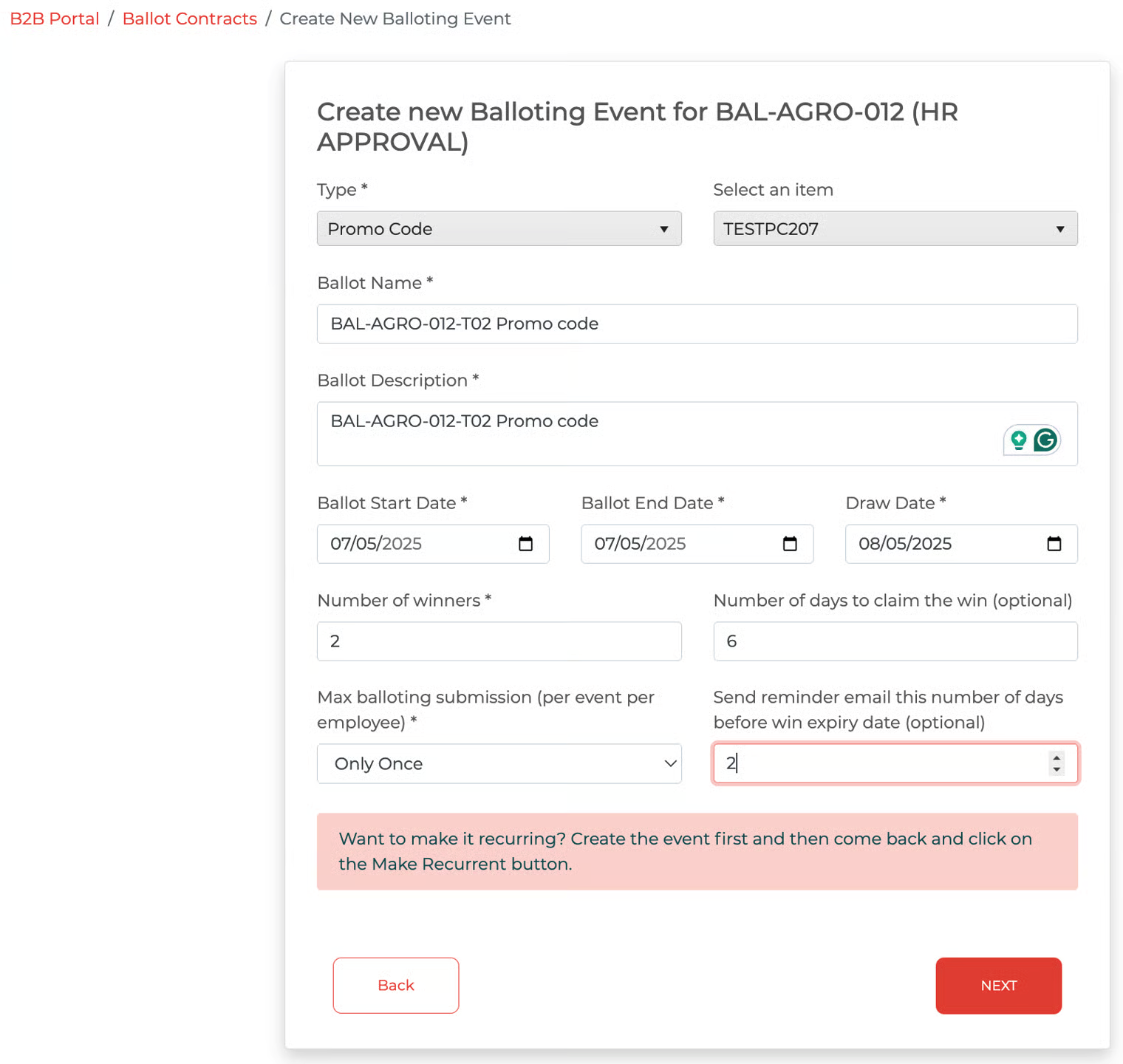
Promo code was selected ('select an item' drop-down field)
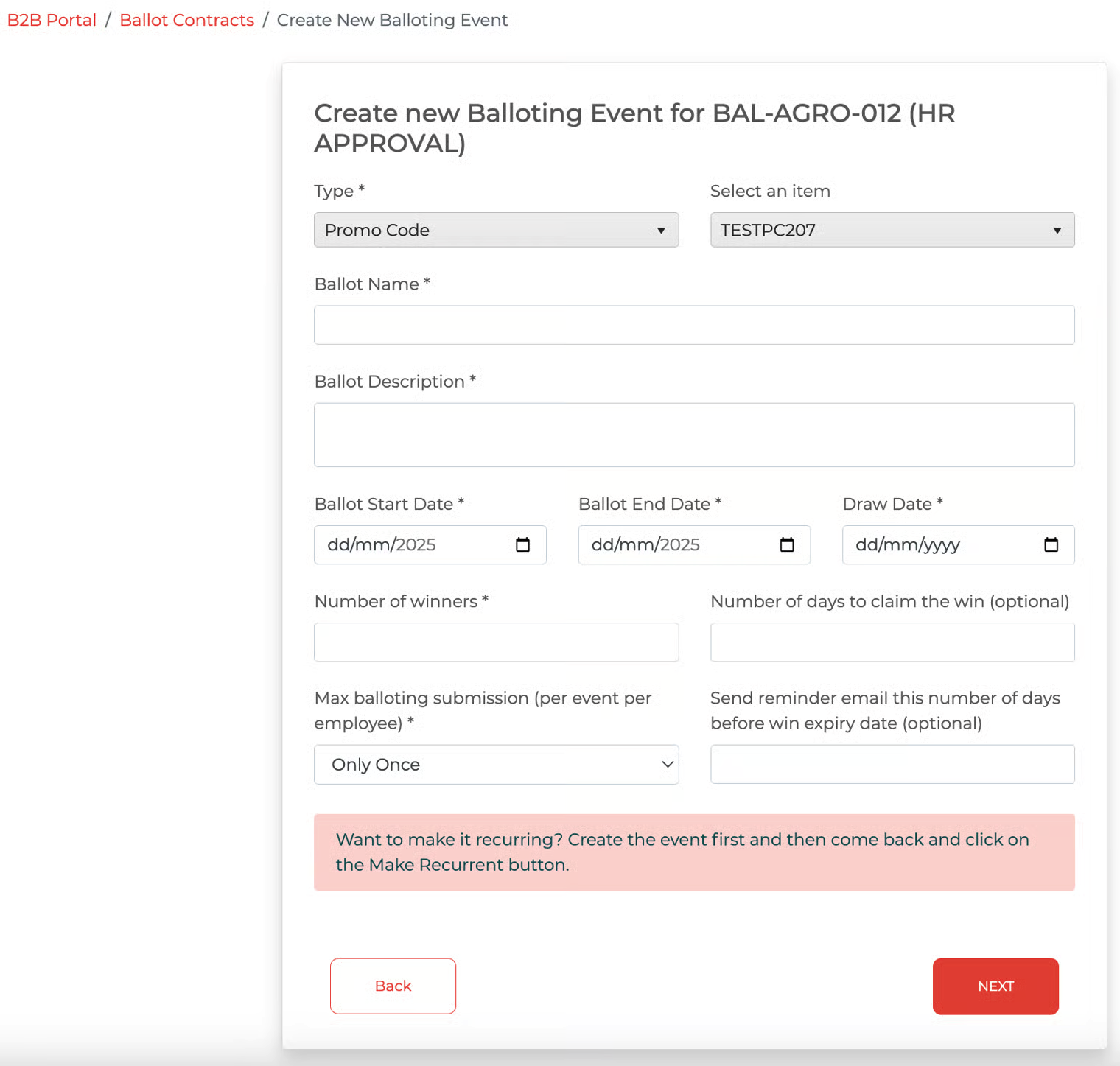
The user can change or select another promo code for the ballot
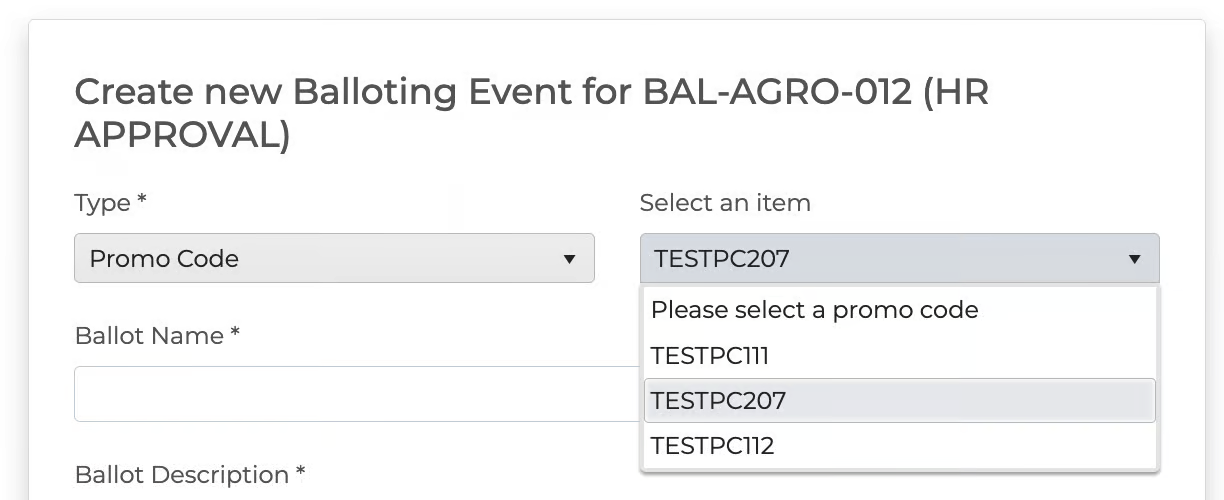
Fill out the details and click the 'Next' button
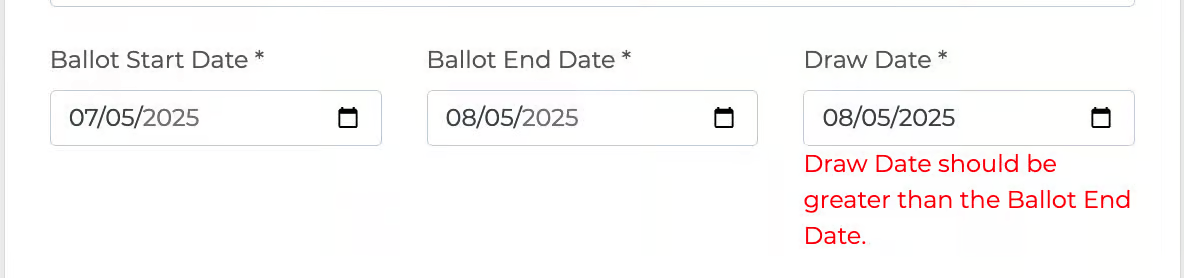
Note: Draw Date *>> The date must be greater than the Ballot end date.** source ASD-54092
If the User enters the same date for the End Date and Draw Date, a message will remind the user and prevent the user from proceeding.
Click the button
'Back' to continue editing.
'Save Draft' to save changes & continue editing
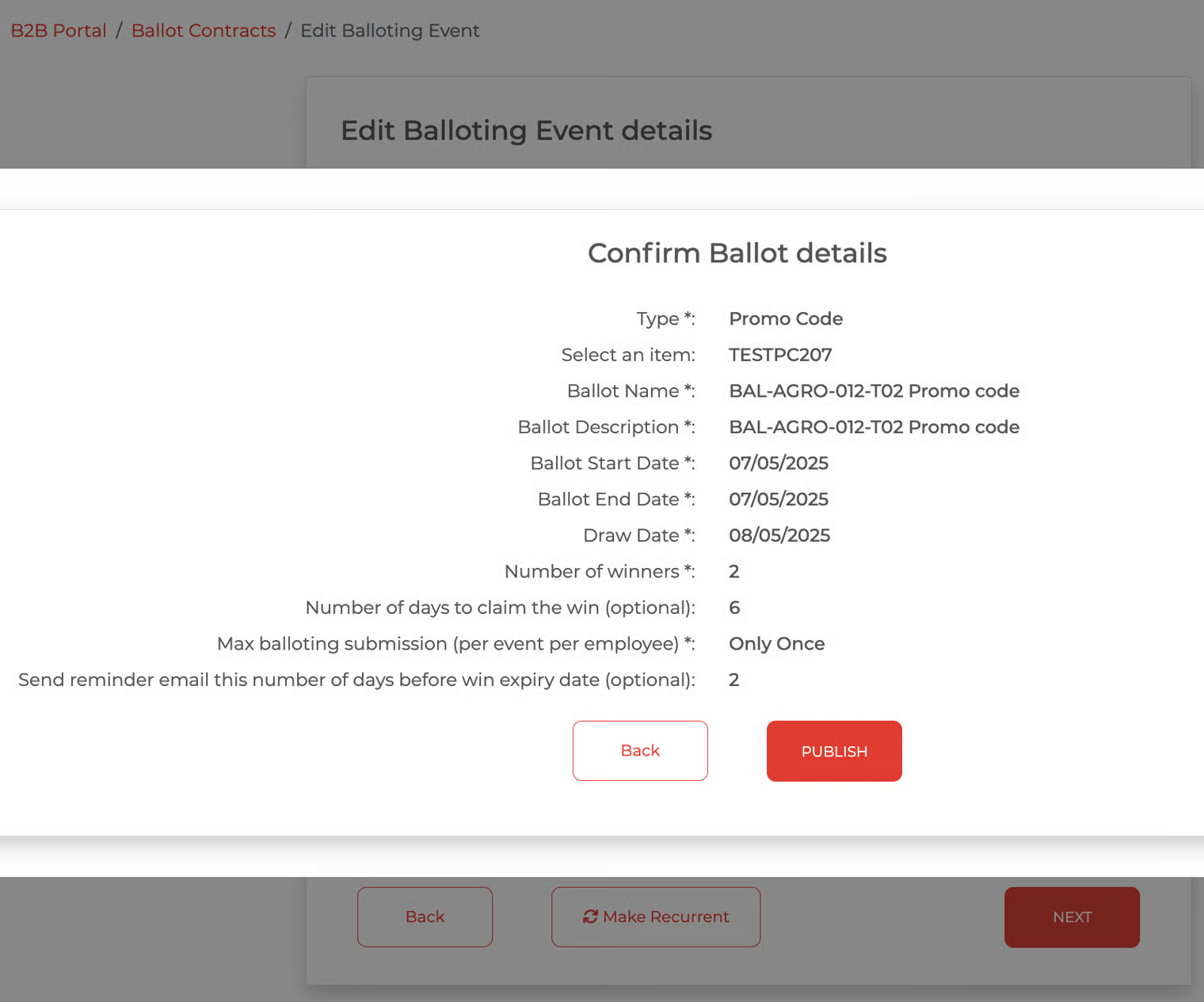
'Publish' to publish the ballot to employees
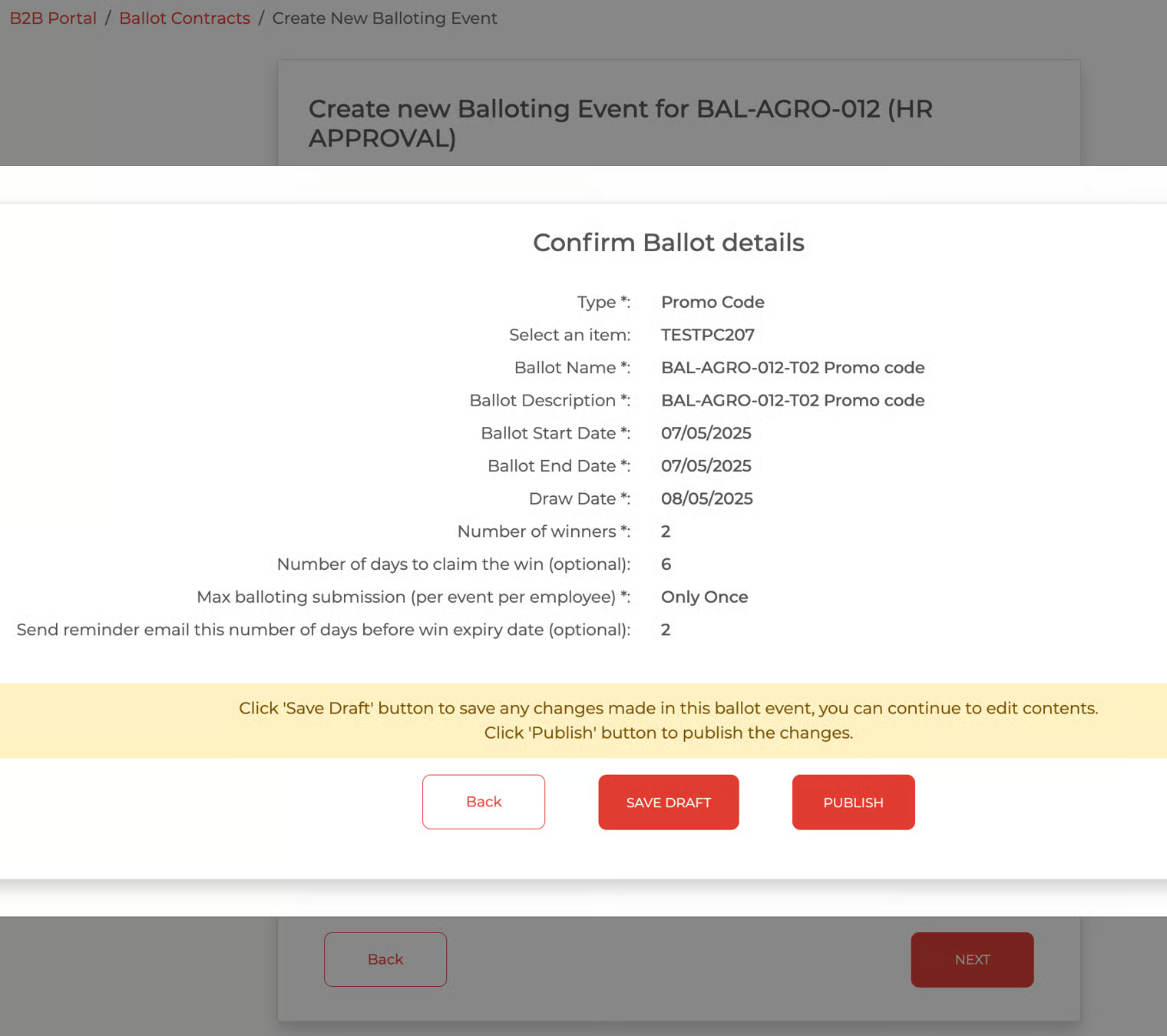
Click the 'Publish' button.
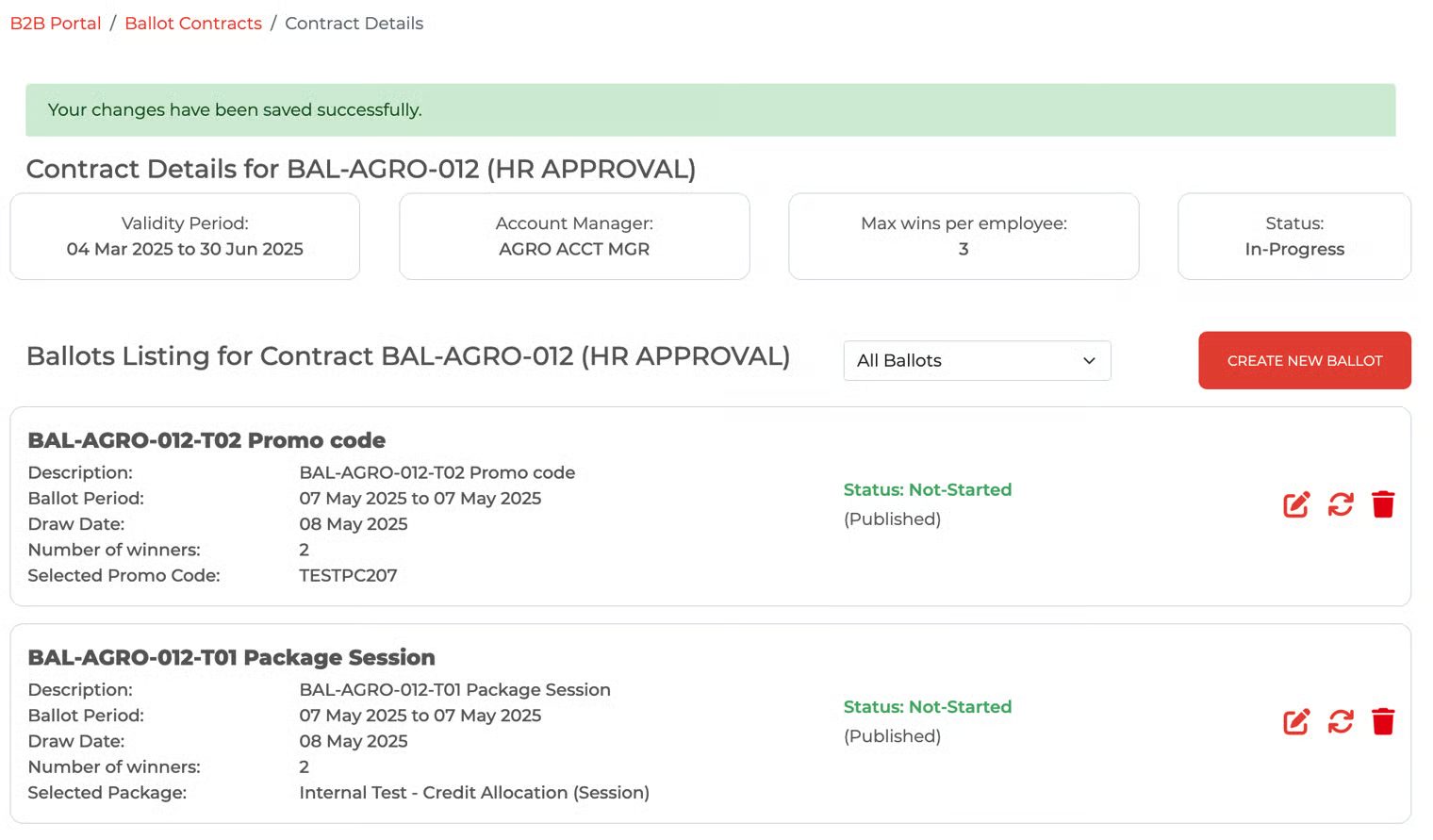
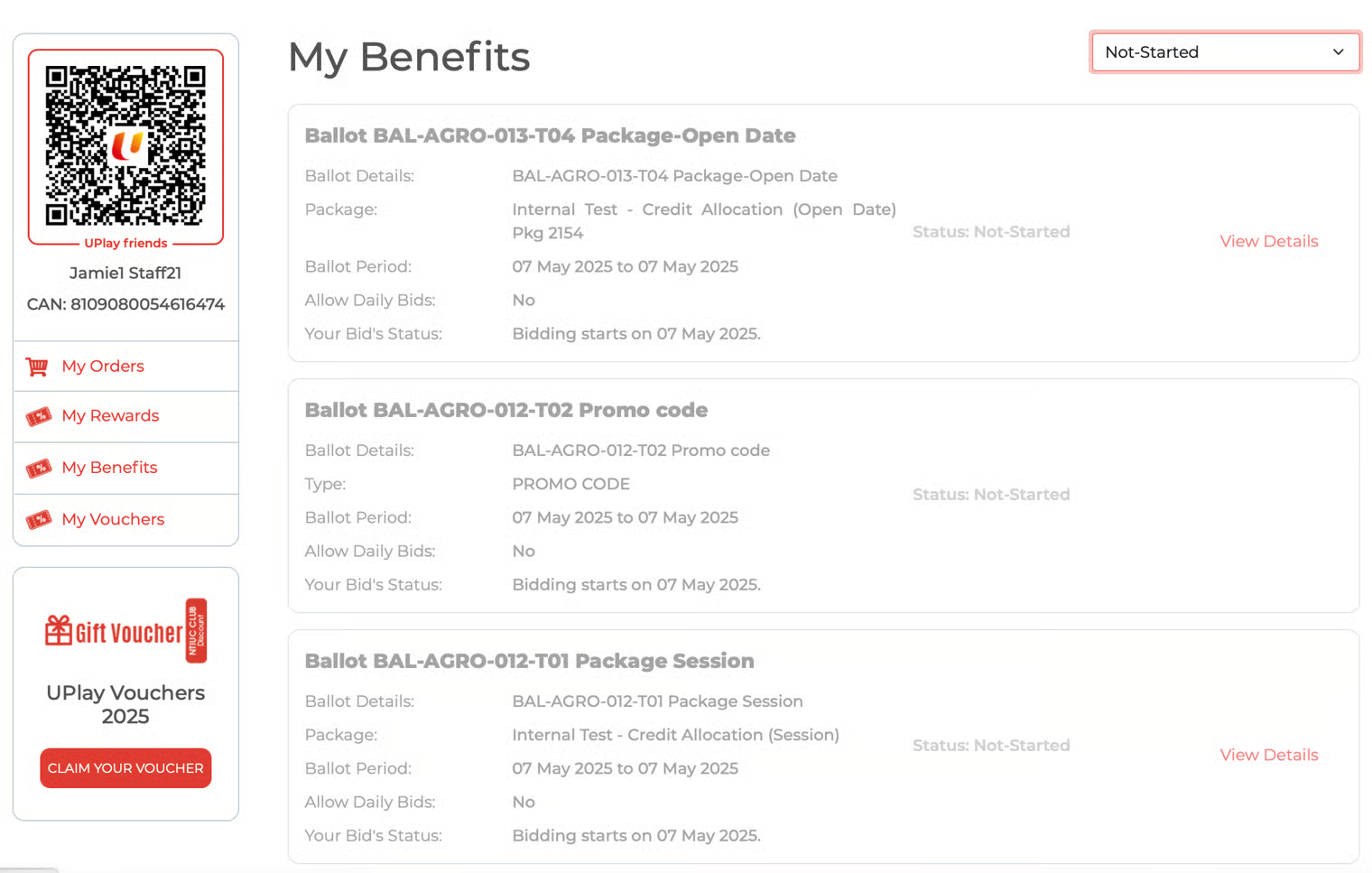
Successfully published. In the example below, the ballot was published on May 6, 2025, with bidding starting May 7, 2025. Employees can see the ballot on their 'My Benefits' page, but cannot bid until May 7. On that day, the ballot status changes to 'In Progress,' allowing participants to bid
Employee's My Benefit page
In B2B, because the ballot has not yet started, the user (Client HR) can go back and edit it. Proceed to make the changes
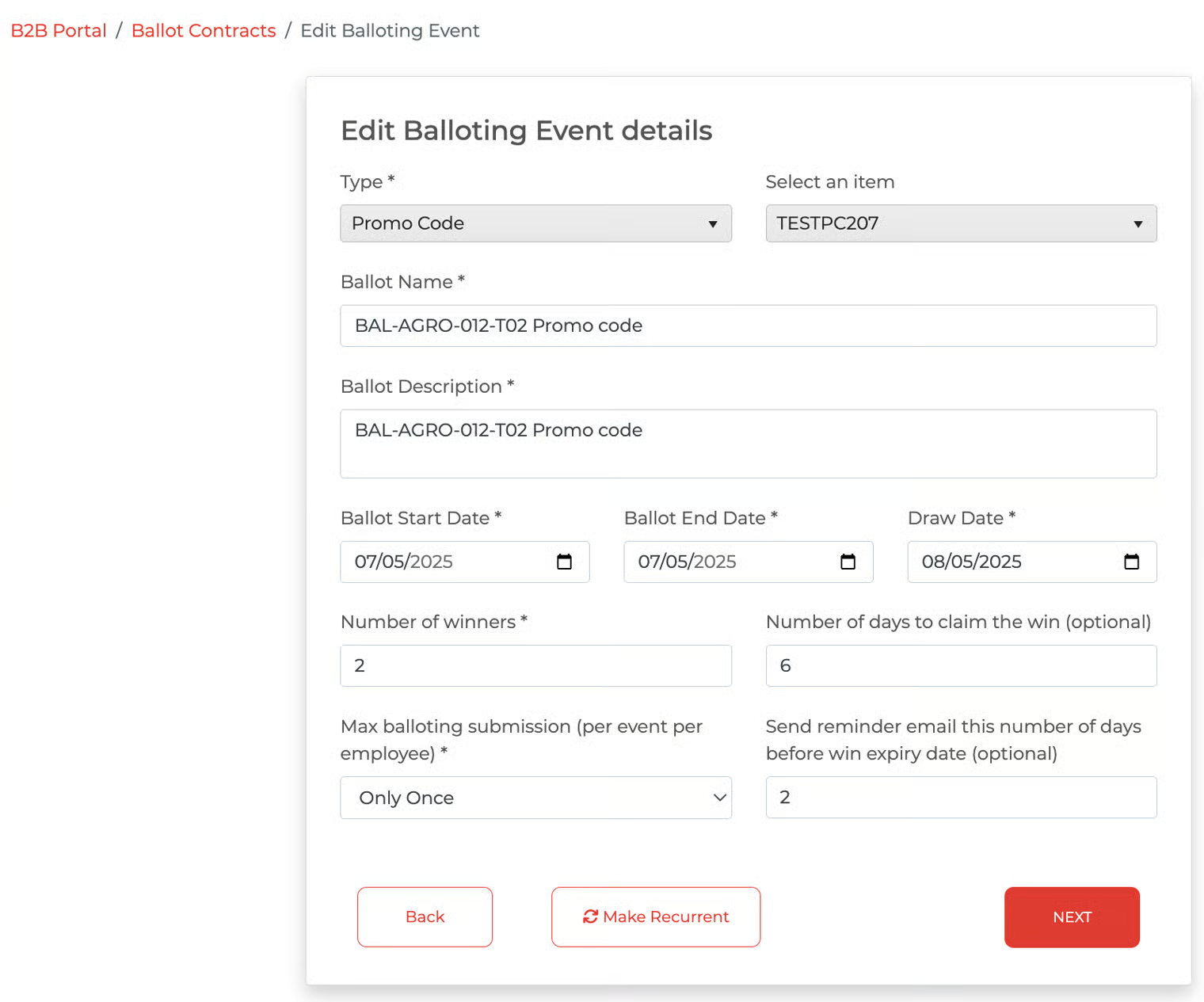
Proceed to make the changes, click 'Next' button and then 'Publish' again
Record in Avalon after the Ballot is created in B2B: