Documentation ›
Avion Multi-Factor Authentication Flows ›
Setup Passkey
Setting Up a Passkey
You can manage your passkeys from the Passkeys section in your account settings.
From the Passkeys menu, you can:
add new passkeys,
remove passkeys for devices you no longer use,
or rename existing passkeys for easier identification.
The passkey name is only used to help you recognise the device or passkey later.
Examples:
Personal Laptop
iPhone 15
Work MacBook
How to Add a Passkey
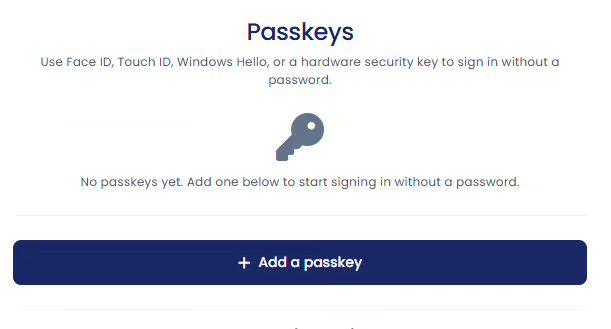
Step 1. Open Passkey Settings
Go to your account settings and open the Passkeys section.
Select "Add New Passkey"
Step 2. Confirm the Passkey Creation
Your browser or device will display a prompt confirming that a passkey for your account will be saved to your:
Windows device,
Mac,
mobile phone,
or another supported device.
The exact appearance of the prompt may vary depending on your browser and operating system.
Step 3. Verify Your Identity
To confirm the passkey setup, your device will ask you to authenticate using your normal device security method, such as:
device PIN,
fingerprint,
or facial recognition.
For example, on Windows you may be asked to enter your Windows PIN. Once confirmed, the passkey is securely created and linked to your account.
Using a Passkey to Sign In
When signing in, your browser or device will prompt you to:
use your fingerprint,
scan your face,
or enter your device PIN.
This verifies your identity and securely signs you in.
Renaming a Passkey
You can rename a passkey from the Passkeys section. Renaming helps you identify which device a passkey belongs to, especially if you use multiple devices.
Changing the name does not affect how the passkey works.
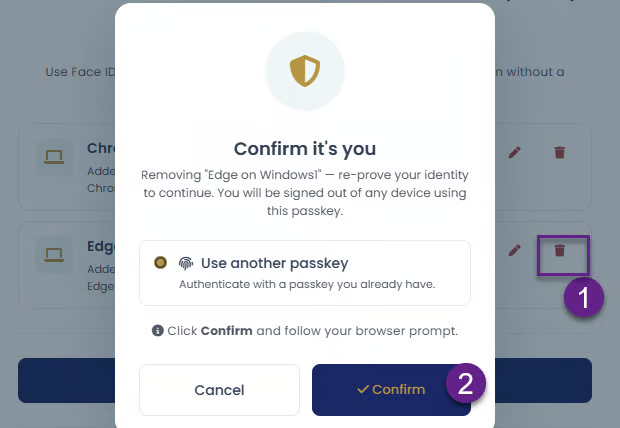
Removing a Passkey
If you no longer use a device, you should remove its passkey from your account.
For security reasons, when deleting a passkey you may be asked to confirm your identity by:
selecting another existing passkey,
or entering a verification code from your authenticator app.
This additional verification helps prevent unauthorized removal of passkeys from your account.
Benefits of Using Passkeys
Passkeys provide:
faster sign-in,
stronger security,
protection against phishing attacks,
and no need to remember passwords.