Task management within a service desk request helps to break down the request resolution into actionable steps, assign them to specific users, and track progress towards closure.
This allows for better organization, improved efficiency, and clearer visibility into ticket status and progress.
Tasks for service desk tickets can be accessed via the Tasks tab that is located next to the Comments tab of the ticket.
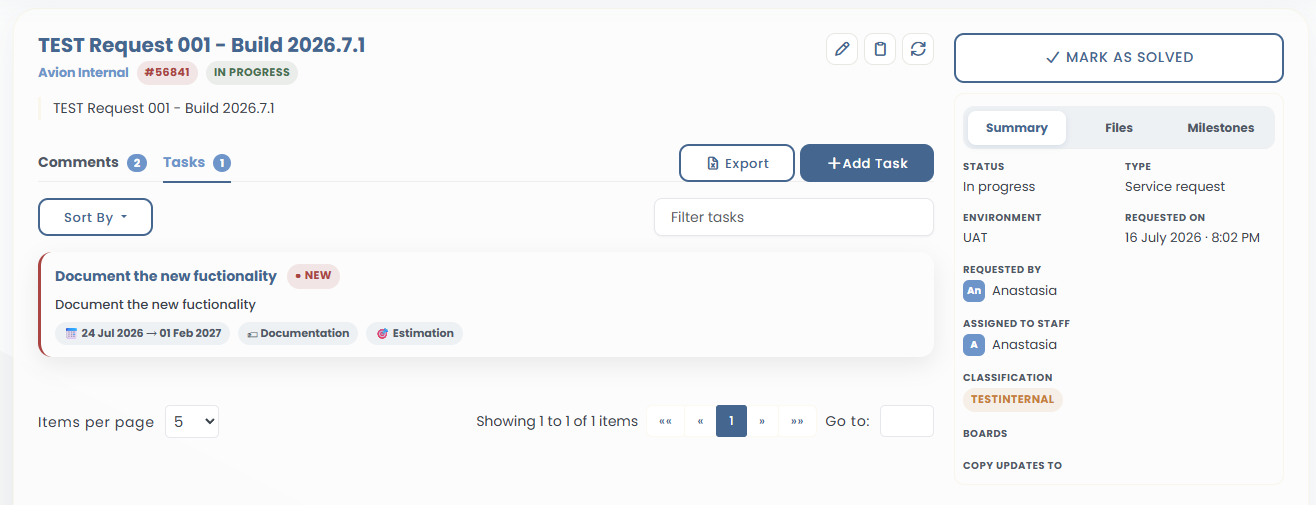
Add task
Click Add task. A window will pop up.
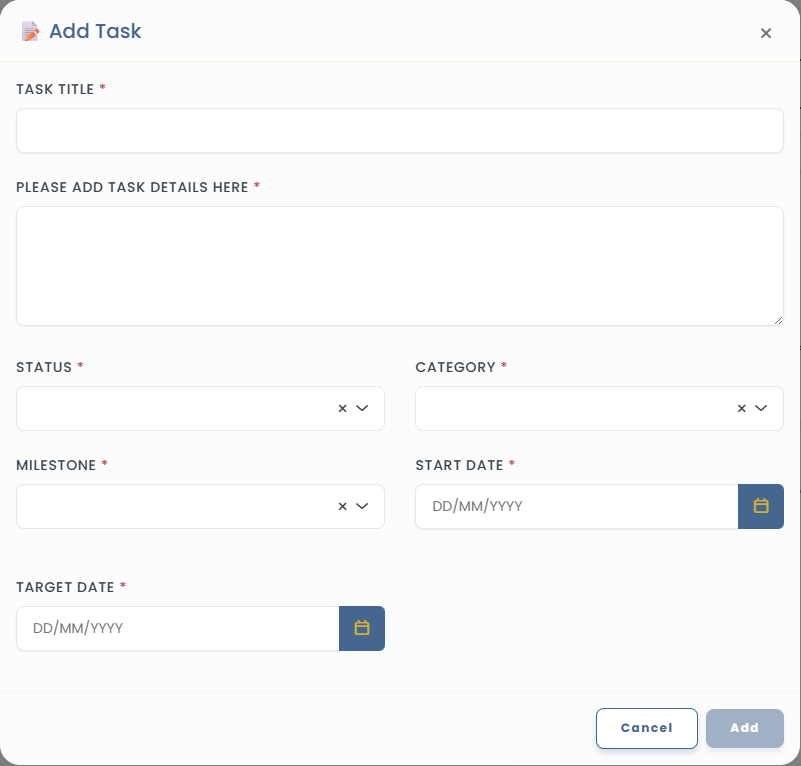
Populate the fields according such as task title and task description (brief summary).
Select a category from the dropdown options.
Select a task status.
Select a milestone that the task is currently in at the moment.
Select a start date by utilizing the calendar.
Click Add to proceed with changes or Cancel to exit without saving.
Edit task
A task must already exist or added previously before editing is permitted.
Click on
 icon.
icon.Update field values accordingly.
Click Save to proceed with changes or Cancel to exit without saving.
Delete task
Tasks can be deleted via the  icon.
icon.
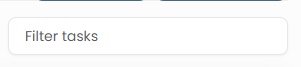
icon.Filter task
Similar to service desk request , tasks can also be filtered by utilizing keyword
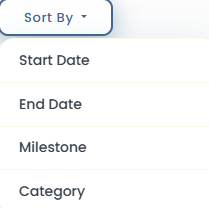
These options are available for sorting.
Click Export button to extract and download into an excel file.