Create and Submit Contract for Finance Approval
Finance Approval Submission
Admin
Role: Admin
Navigate to the Organisation detail page and select the Credit Request Contracts tab.
Click on the tool icon. To initiate a new contract, select the +New button.
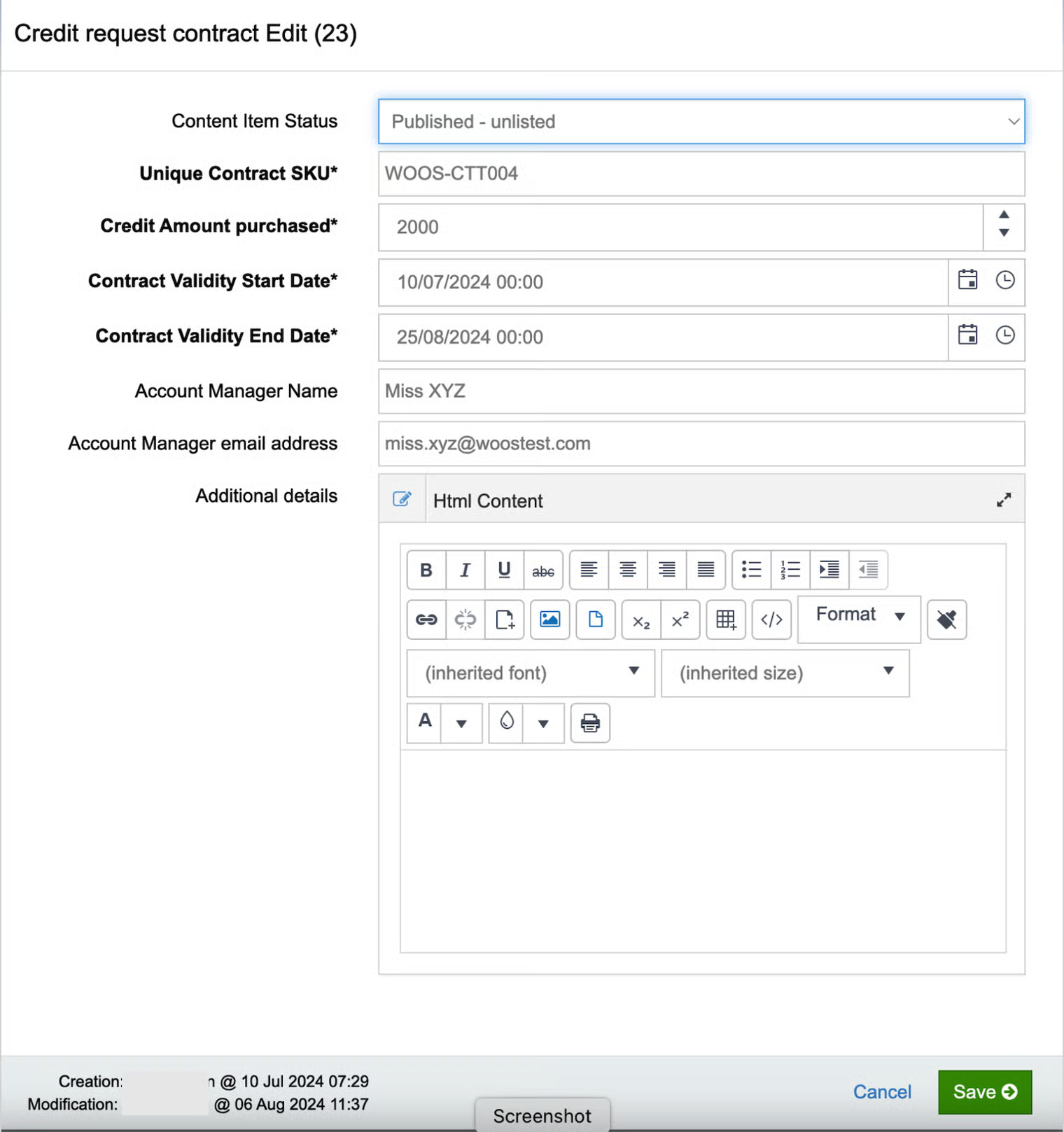
Enter the credit request contract details in the Credit request contract Edit form.
In the Content Item Status field, choose 'Draft' to save the contract as a draft or 'Published - unlisted' to submit to the finance team for approval.
Content item status = Draft, Contract Status = Not Started
Content item status = Published - unlisted, Contract Status = Not Started
Locate the newly created credit request contract.
click on the contract ID link to go to the credit request contract detail page or
click on the contract (highlighted in blue) and scroll down to the Disbursement Cycles tab and Contract comms tab
Disbursement cycles tab - disbursement cycles will be populated here when client HR creates the disbursement cycles in the B2B portal
Contract comms tab - before saving the contract as 'Published - unlisted,' the admin must set up the email notification format in this tab. The notification will be sent to the client's employees, so it is essential to complete this step accurately.
Admin proceeds to submit the contract for finance approval by saving it with the content item status field = Published-unlisted
Credit Request Contracts
Credit Request Contracts Tab
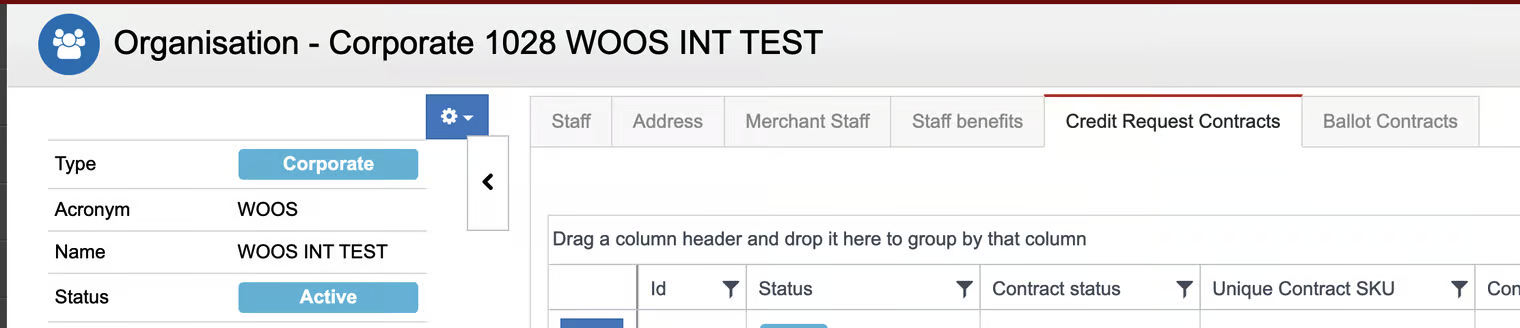
Create Contract
Create New Credit Request Contract
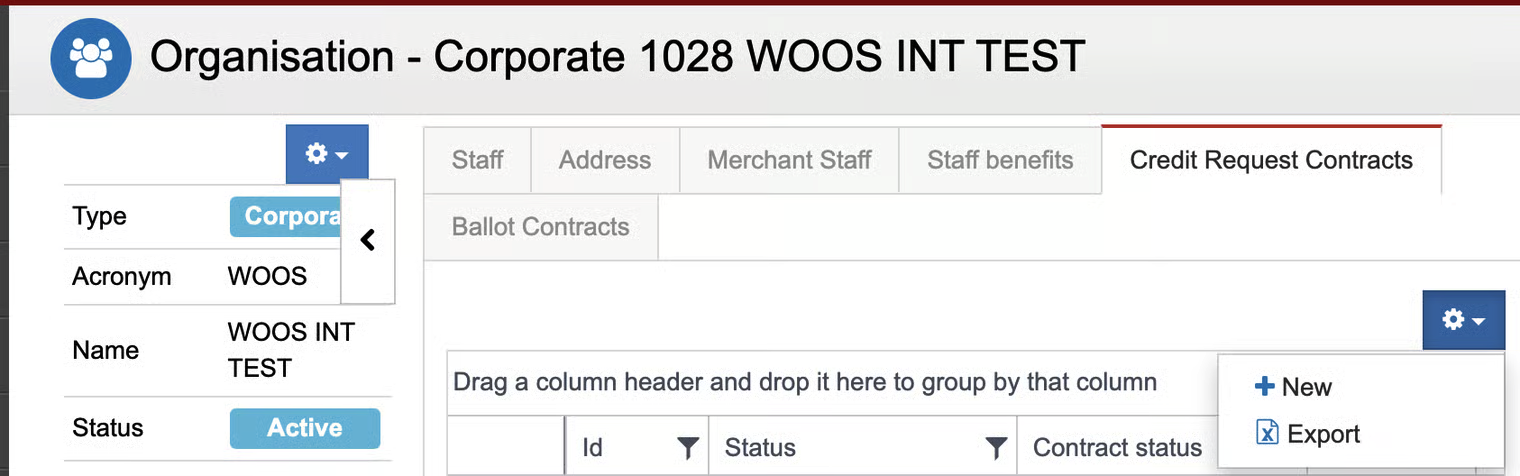
Edit form
Credit request contract Edit form
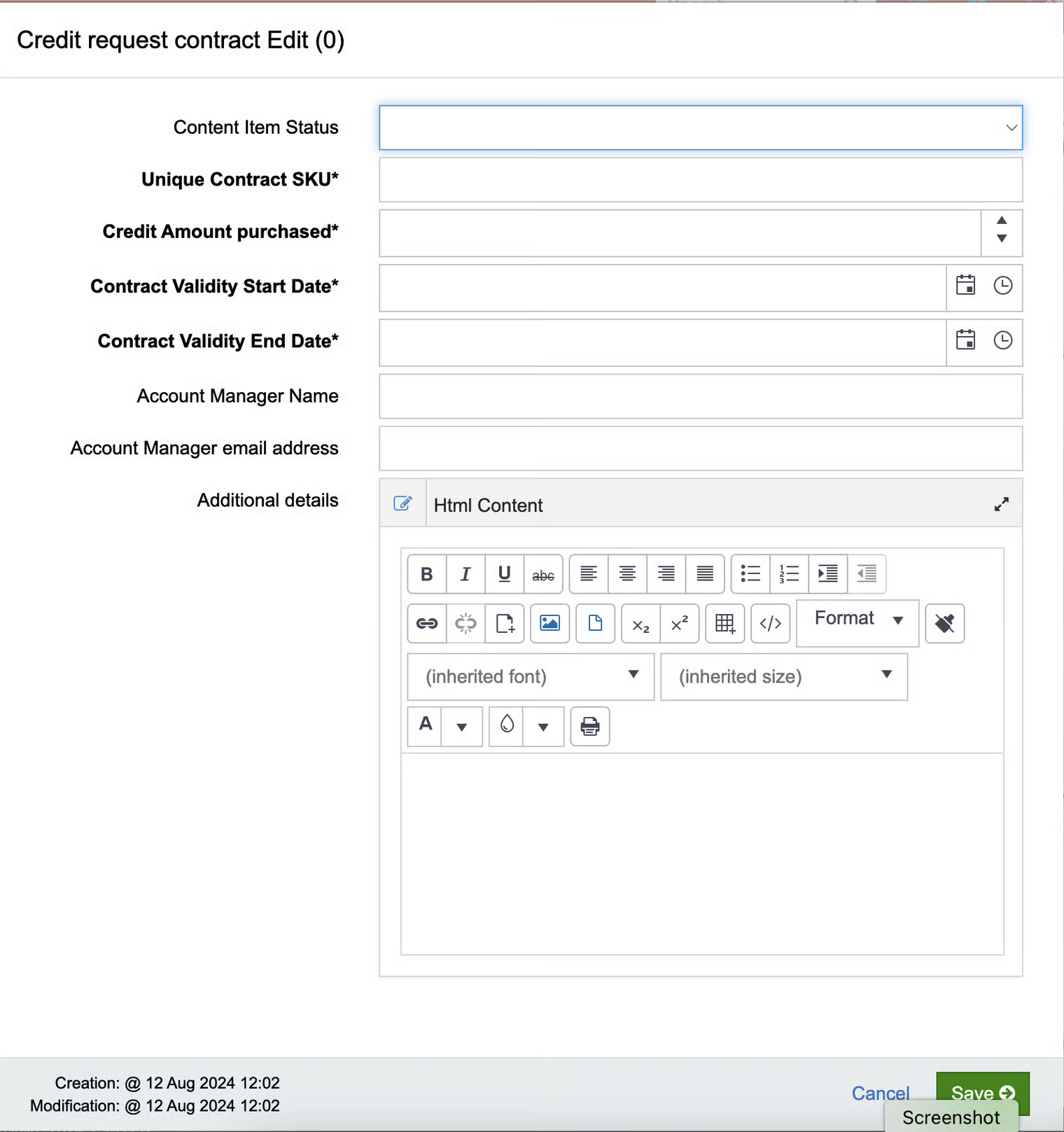
Edit Form - Draft
Credit request contract Edit form - Draft
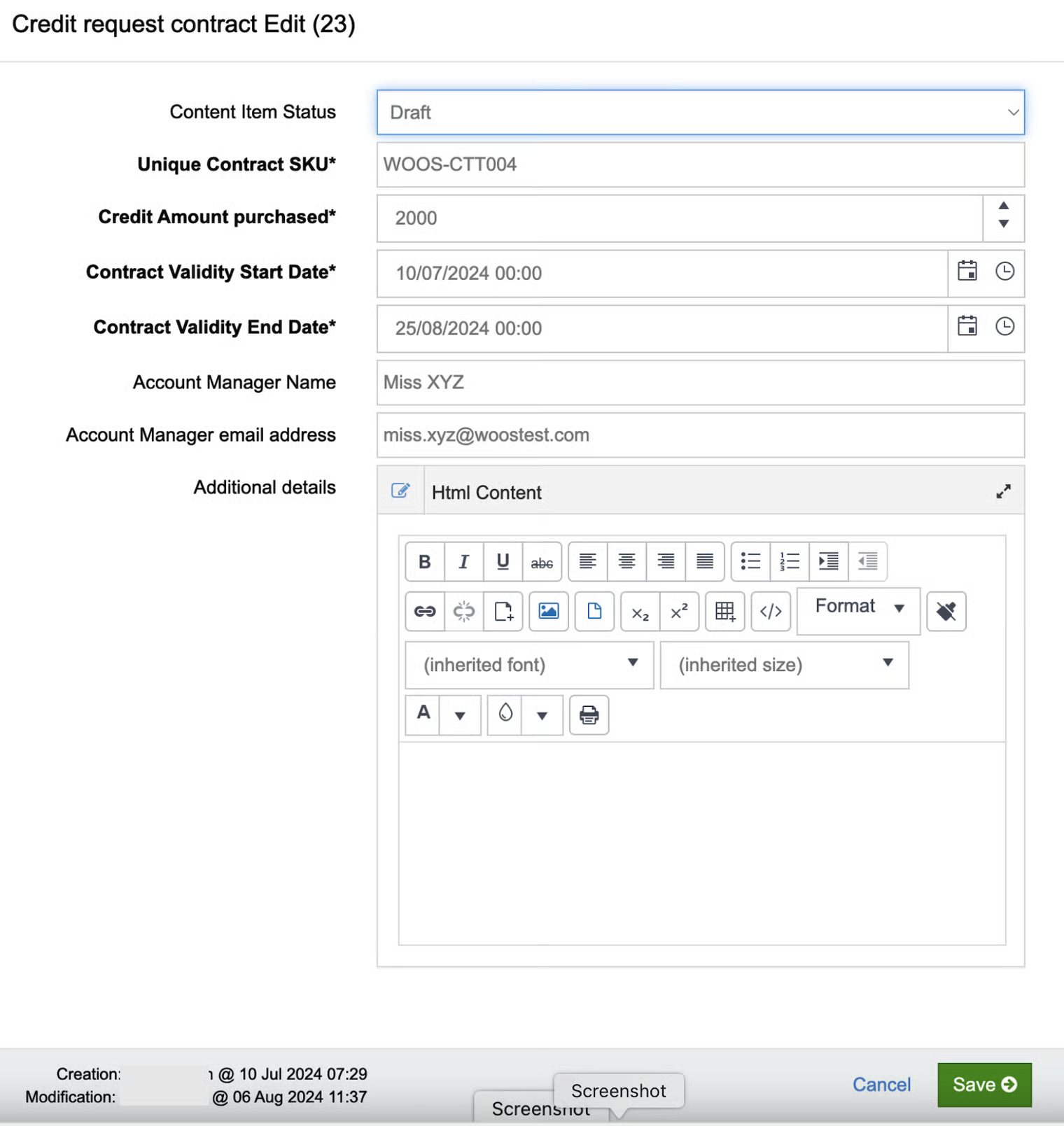
Credit Request Contract - Draft
New credit request contract - Draft status

Credit Request Contract - ID & Link
New credit request contract with ID no and link

Credit Request Contract - Detail Page
Credit request contract detail page
Content Item - Published - unlisted
Content Item Status changed to Published - unlisted
Contract status - Not Started
Status : Published - unlisted with Contract status: Not Started
