Start Training
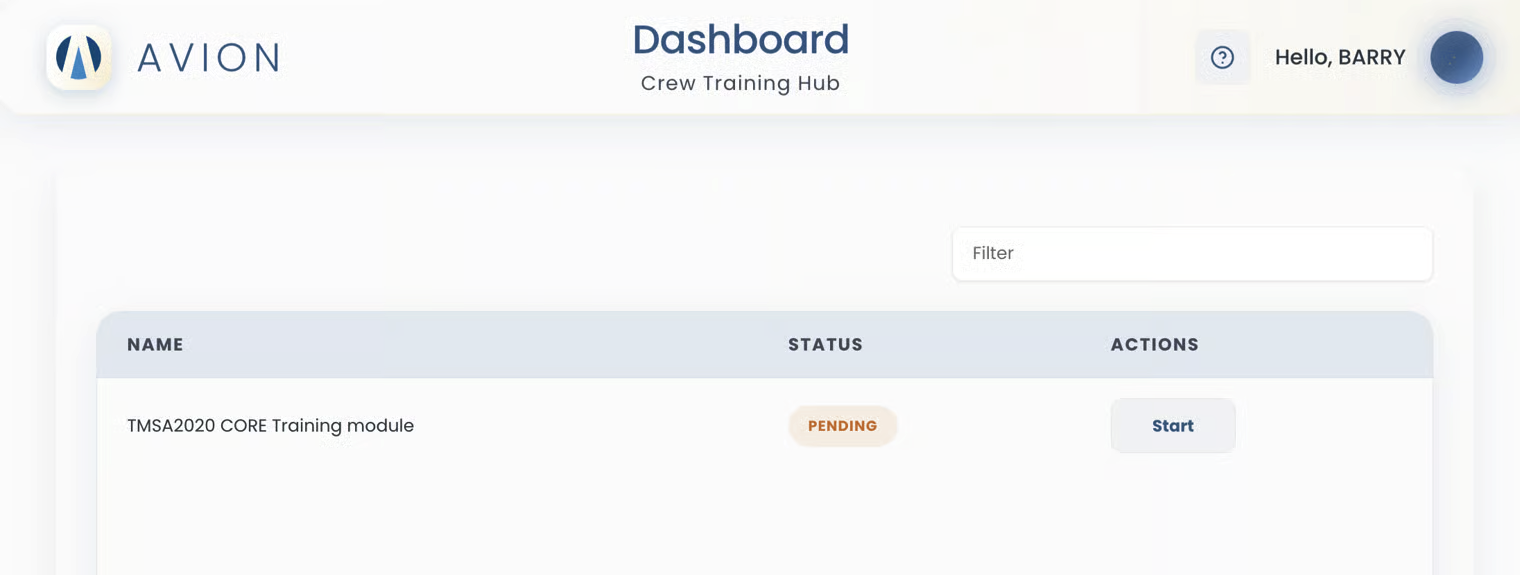
To start any training, the user clicks the Start button in the action column.
Start
Training Module
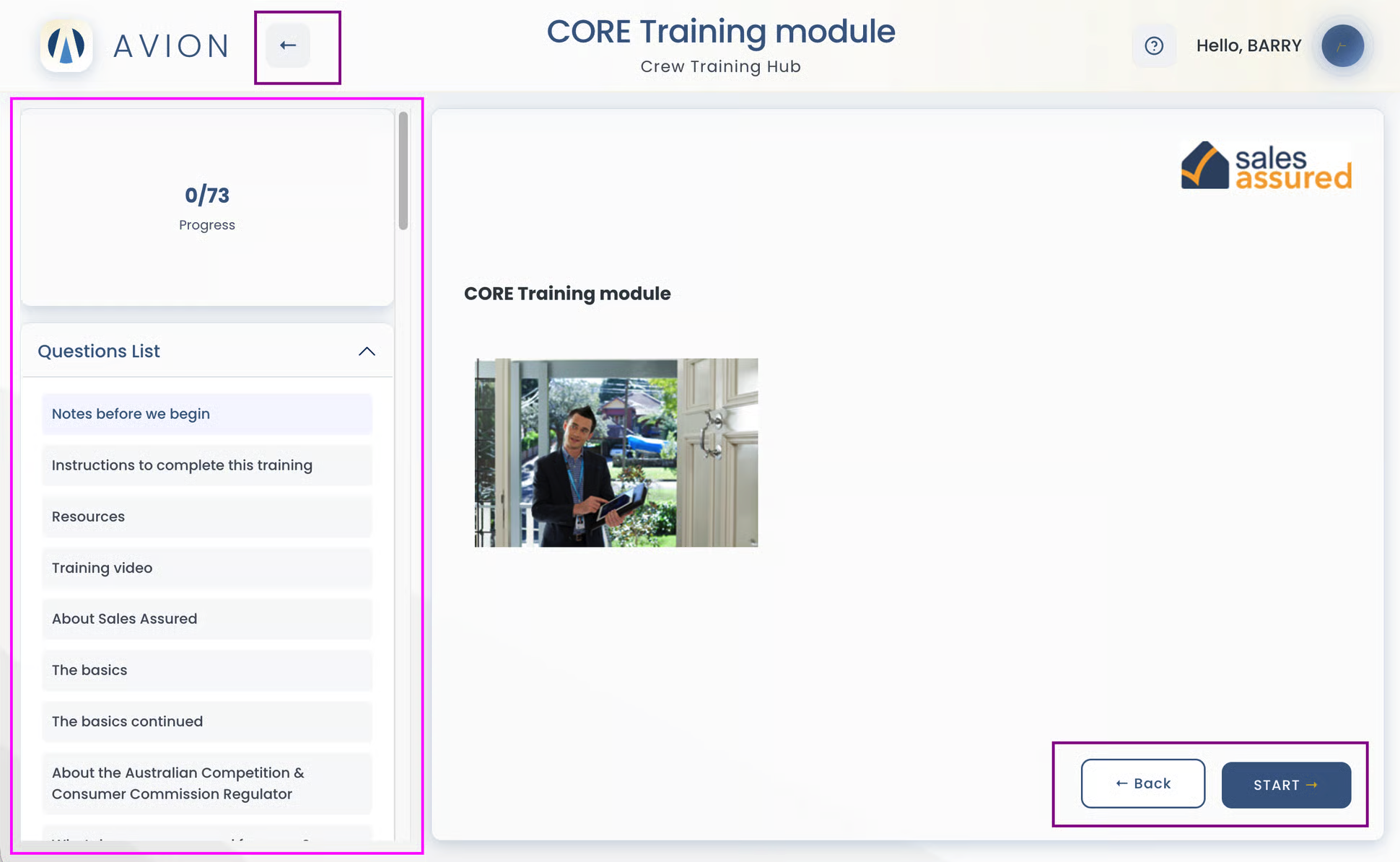
The crew will be taken to the Training Module page.
On the left side of the page, the crew will find a progress tracker showing the number of pages. The tracker starts at zero and increases as the Crew progresses.
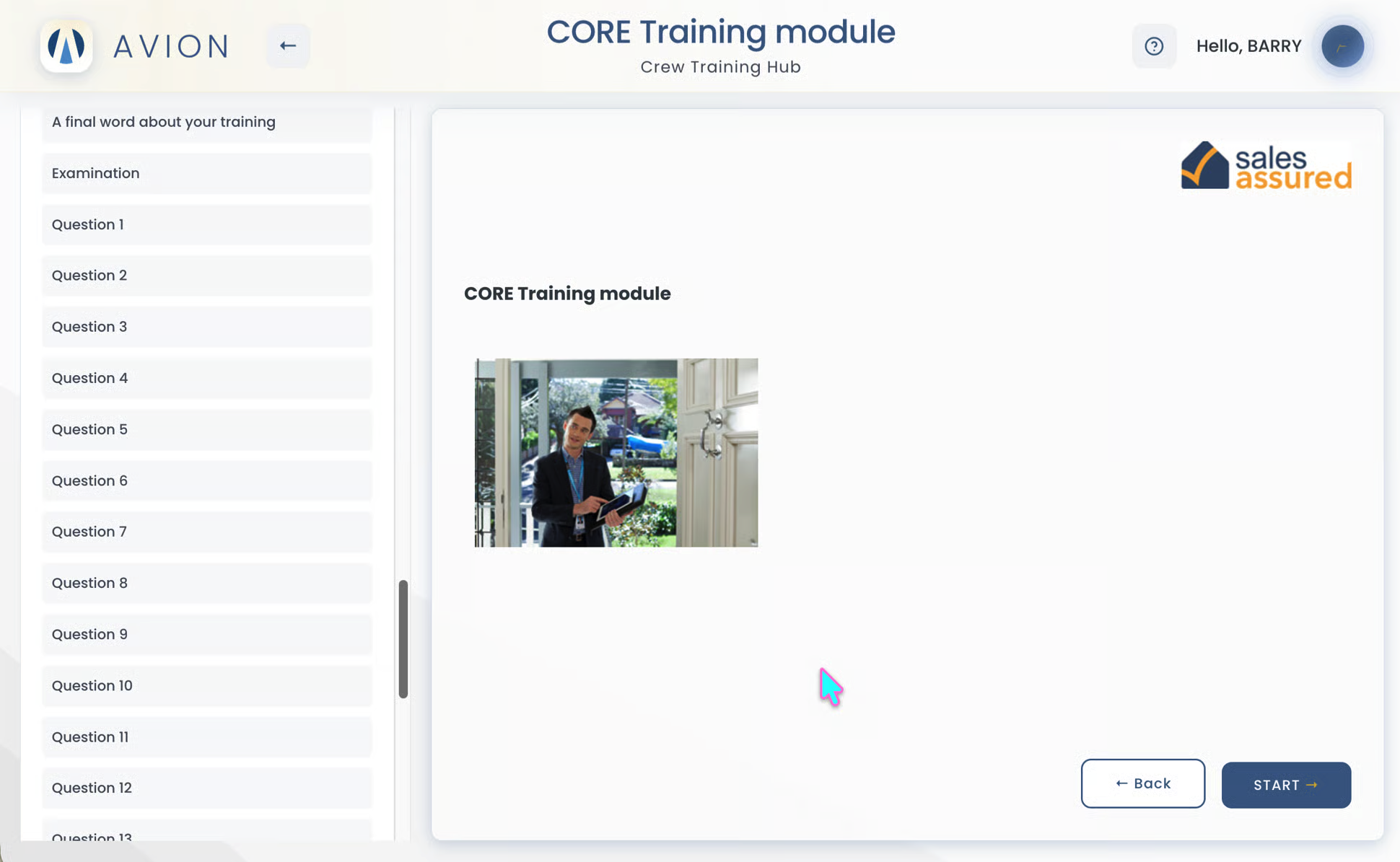
Below it, there is a content menu and a list of questions (scroll down)
If the crew clicks the back button (back arrow symbol) at the top or bottom, they will be returned to the main training hub page. The progress is not saved, and the status remains as Pending.
Click the Start button at the bottom-right of the page to continue.
Training Module Pages
Once the crew clicks Start (bottom right), they will be taken to the next page of the module.
Starting from this page, there will be a 'Previous' and 'Save & Next' buttons.
The crew can now begin going through the training materials step by step.
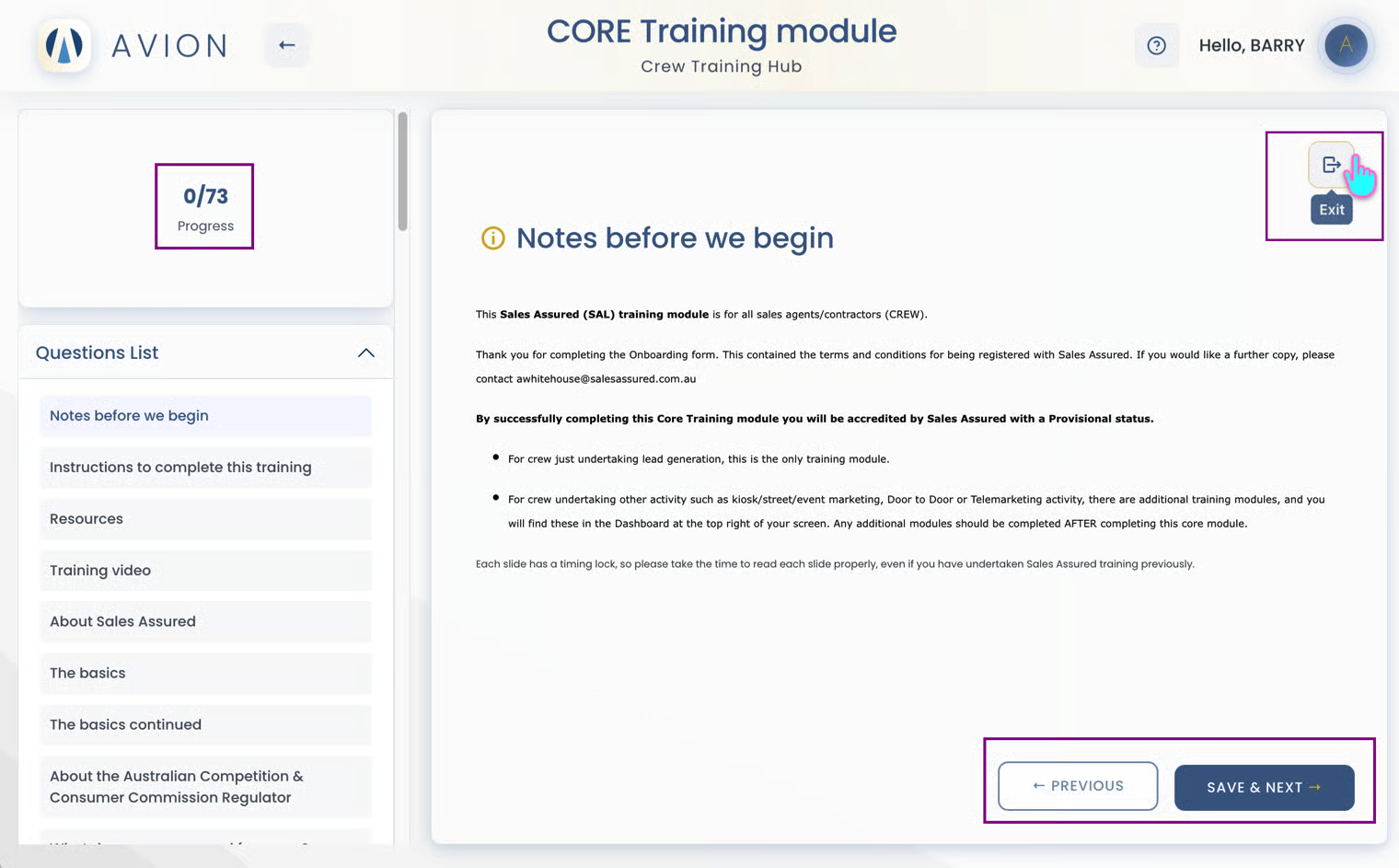
Exit Training Module
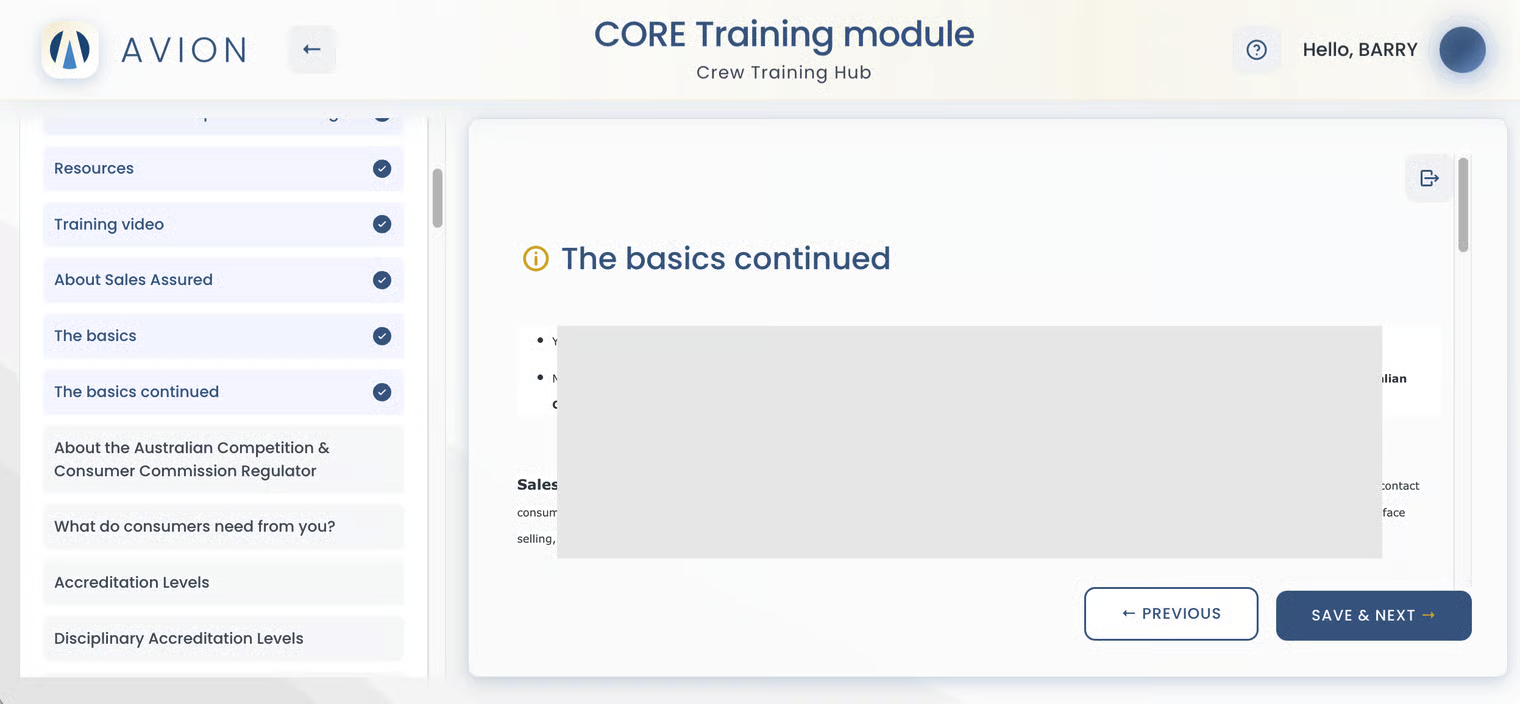
At any point or page where the crew chooses to stop before finishing the training materials, the crew can
click the 'Save & Next' button
then click the 'Exit' button
If the crew needs to go to the previous page, click the 'Previous' button.
Click Exit and confirm.
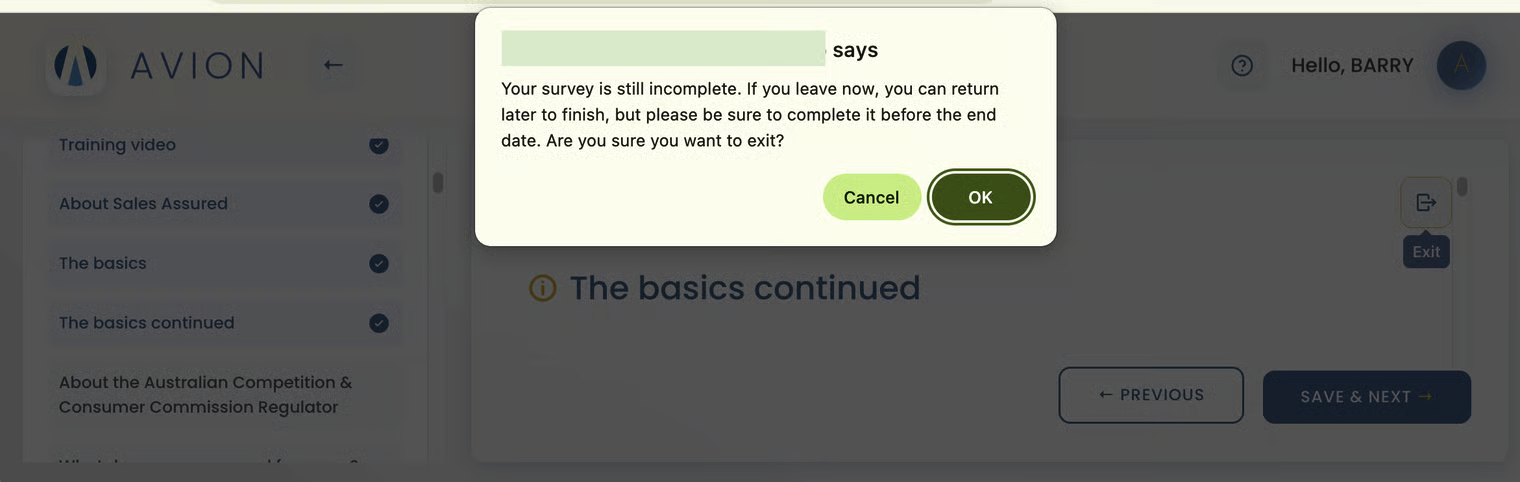
Training In Progress
The training status is now marked as In Progress on the Crew Training Hub page because the crew stopped and exited before finishing the training materials.
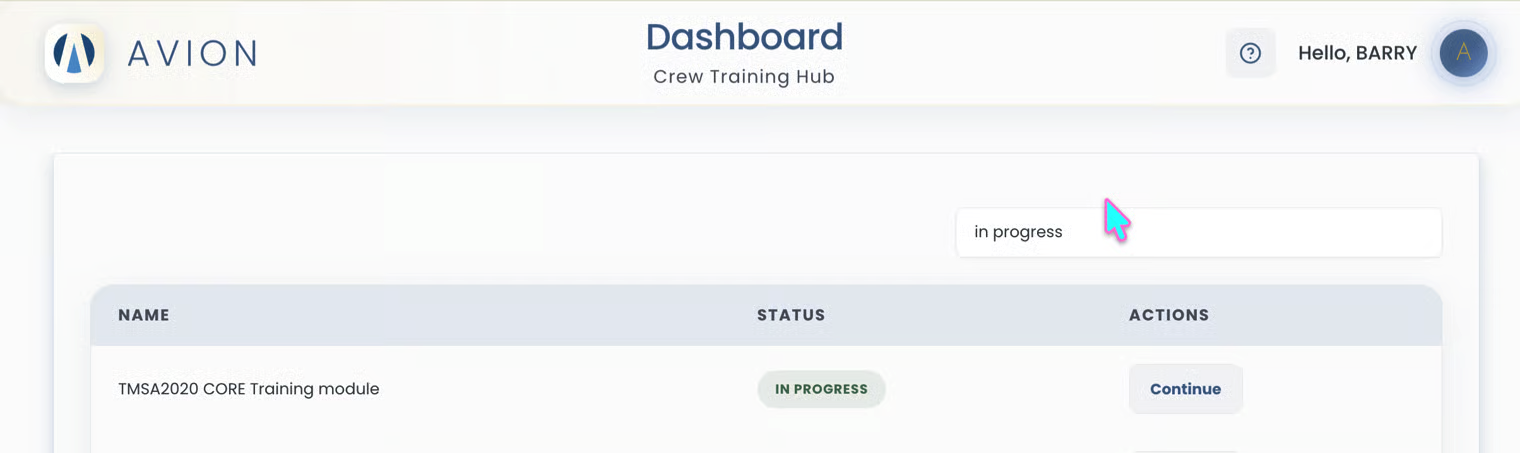
Resume Training
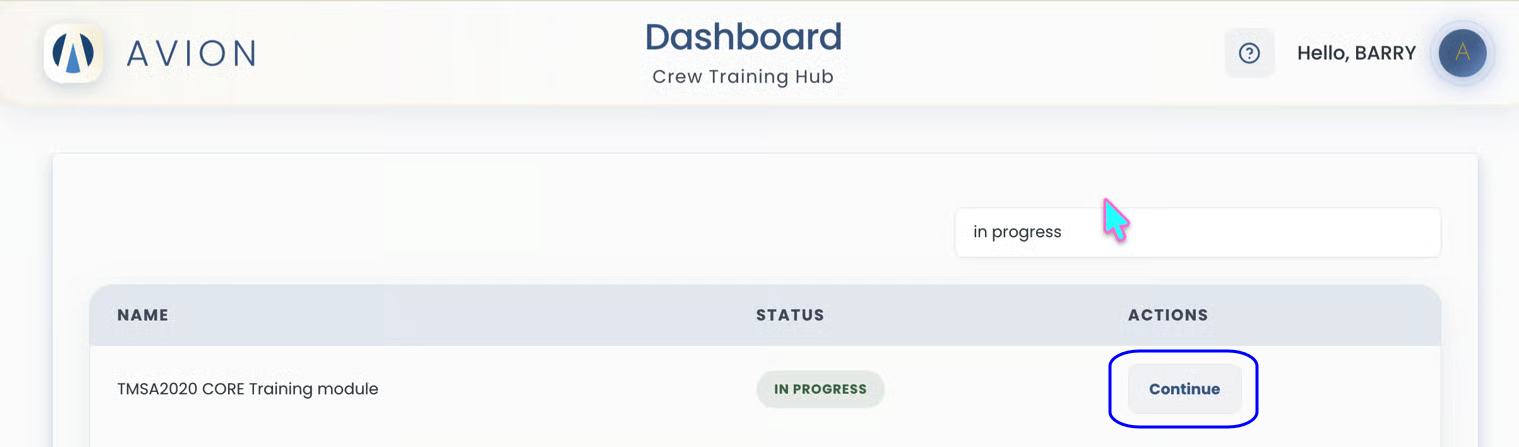
To resume training, the crew can click the 'Continue' button in the action column (which takes them to the Training Module page).