Documentation ›
Avion Multi-Factor Authentication Flows ›
Change Password
Changing Your Password
You can change your password at any time from your account settings -> Under Password
To change your password, you will need to:
Enter your current password
Enter a new password
Confirm the new password by entering it again
Save the changes
For security reasons, your new password must meet certain requirements before it can be used.
Password Requirements
Your new password must:
Be at least 12 characters long
Contain at least one uppercase letter
Contain at least one lowercase letter
Contain at least one number
Contain at least one special character (such as
!,@,#,$)
In addition, your new password:
Cannot match any of your last 3 previously used passwords
These requirements help create stronger passwords that are harder to guess or compromise.
While typing your new password, when a password requirement is satisified the requirement label will turn green as shown below.
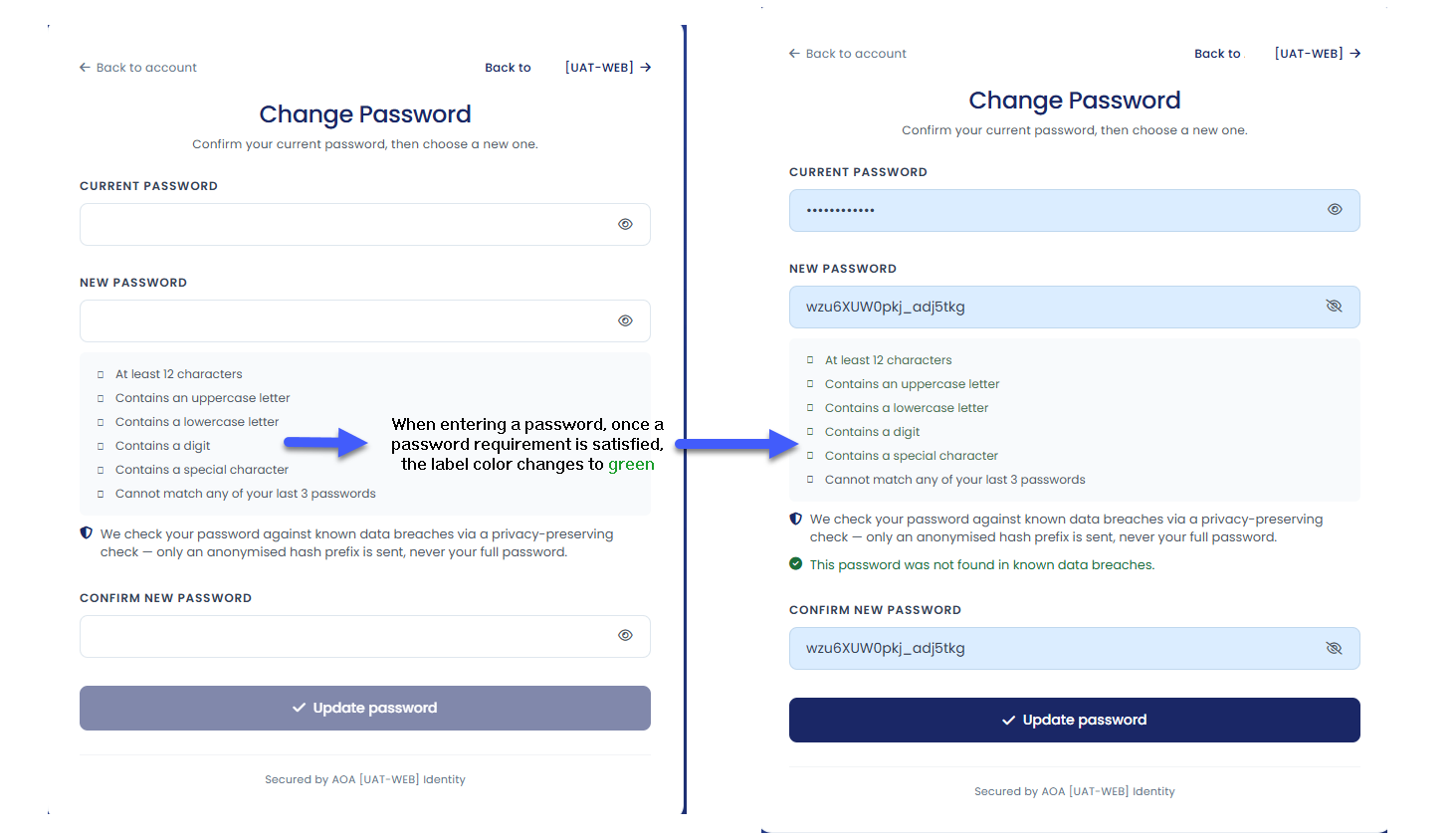
Password Security Checks
As part of the password change process, your new password is also checked against known public data breaches.
This helps prevent the use of passwords that may already be exposed or commonly used by attackers.
To protect your privacy:
only a small anonymized portion of a password hash is checked,
your full password is never sent,
and the original password cannot be reconstructed from the information shared.
This privacy-preserving process helps improve account security while keeping your password confidential.
Tips for Creating a Strong Password
A strong password is:
long and unique,
difficult to guess,
and not reused across multiple accounts.
You can make passwords easier to remember by using a passphrase made from several unrelated words combined with numbers or symbols.
Example:
BlueRiver!Coffee27
Sunset$Basketball84
Avoid using:
personal information,
simple patterns,
or passwords you use on other websites or services.